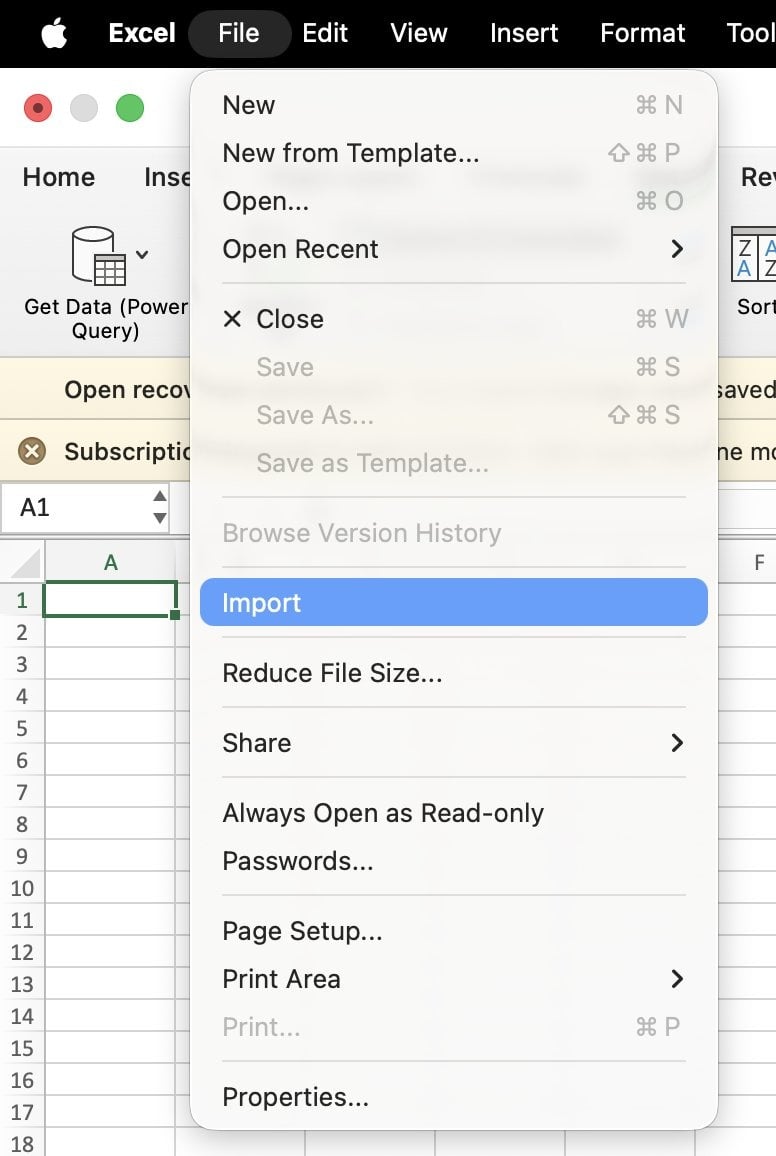
Step 1 – Open the file
1
Open Excel
Launch Microsoft Excel.
2
Go to File → Import
From the top menu, choose File → Import.
3
Select the CSV file
Select CSV as the file type and open your file.
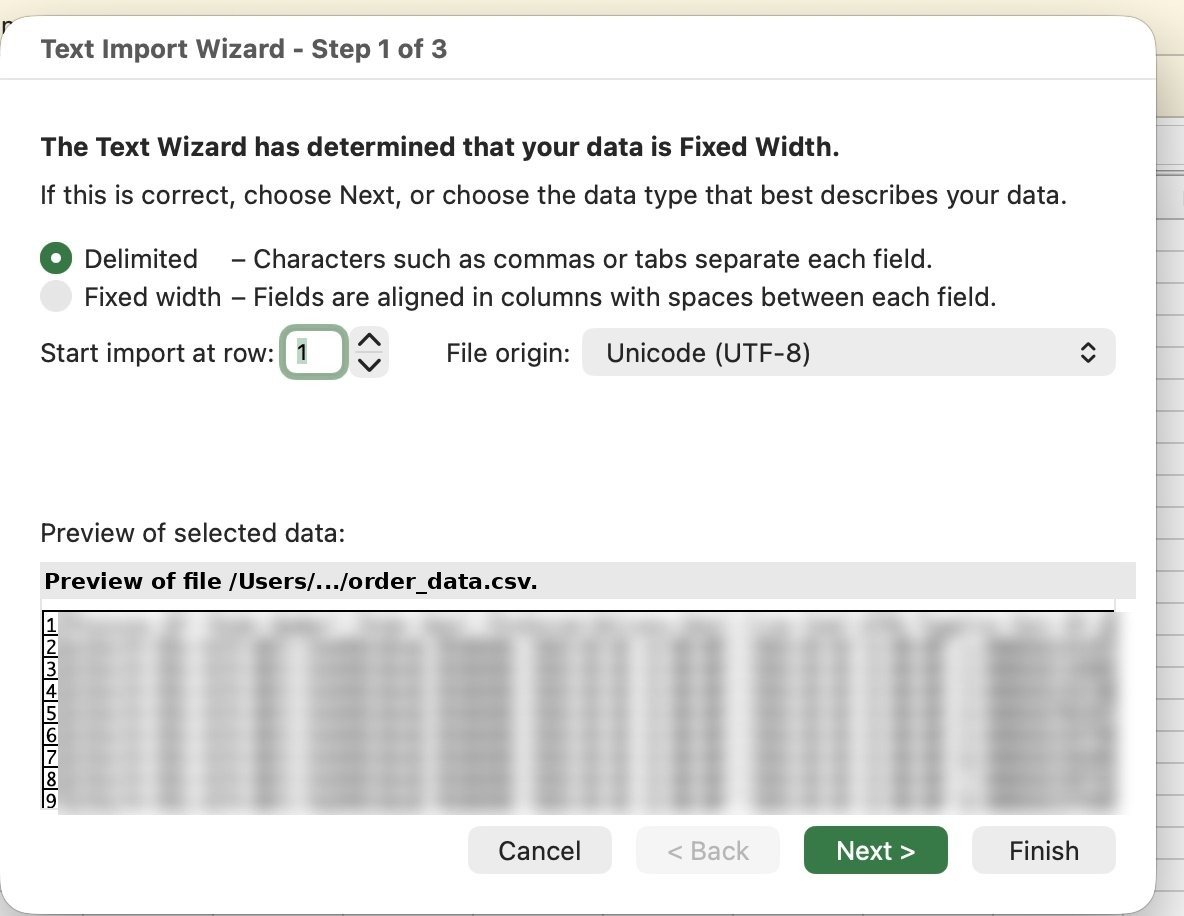
Step 2 – Choose the import type
1
Select Delimited
Choose Delimited — not “Fixed Width”.
2
Keep start row at 1
Leave Start import at row set to 1 so the header row is included.
3
Click Next
Click Next to continue.
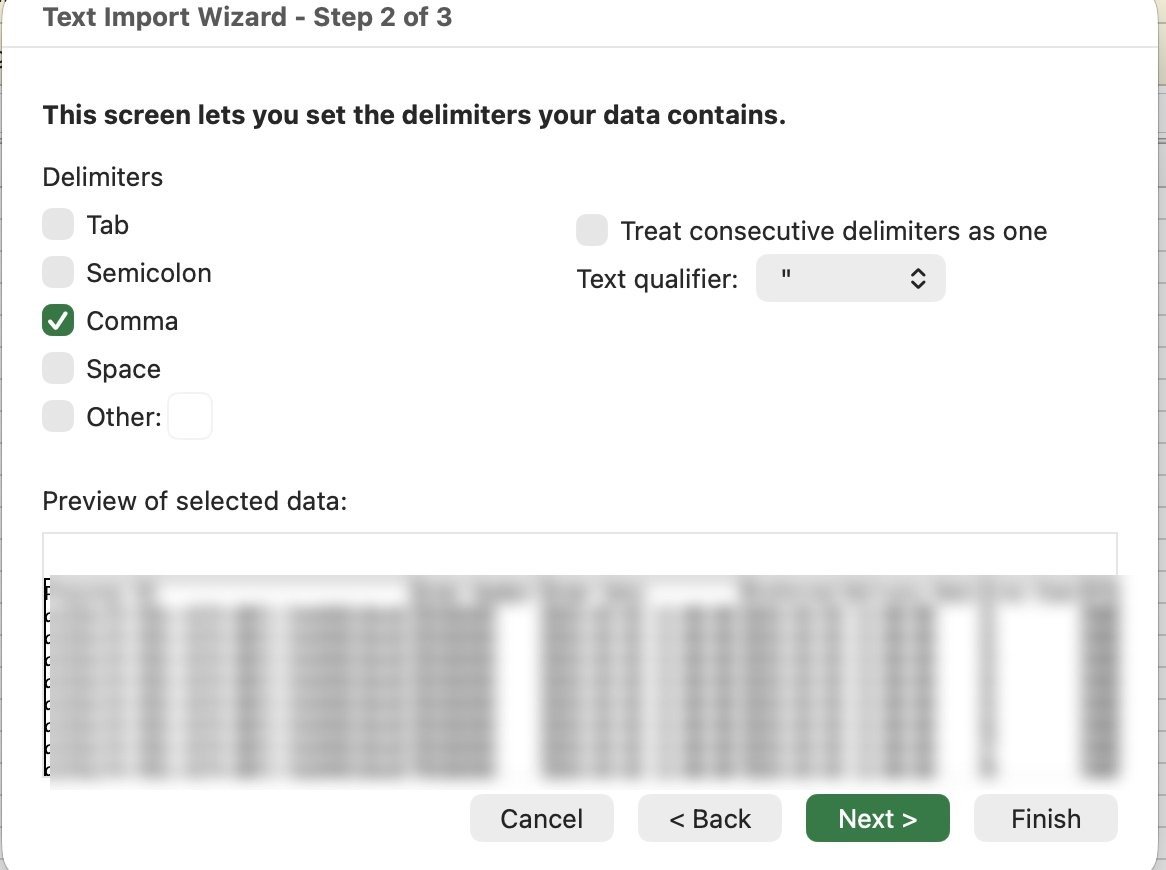
Step 3 – Set the delimiter
1
Tick Comma only
Check Comma as the delimiter.
2
Uncheck everything else
Make sure Tab, Semicolon, and Space are unchecked.
3
Keep the text qualifier
Leave Text qualifier as
" (double quote).4
Click Next
Click Next to continue.
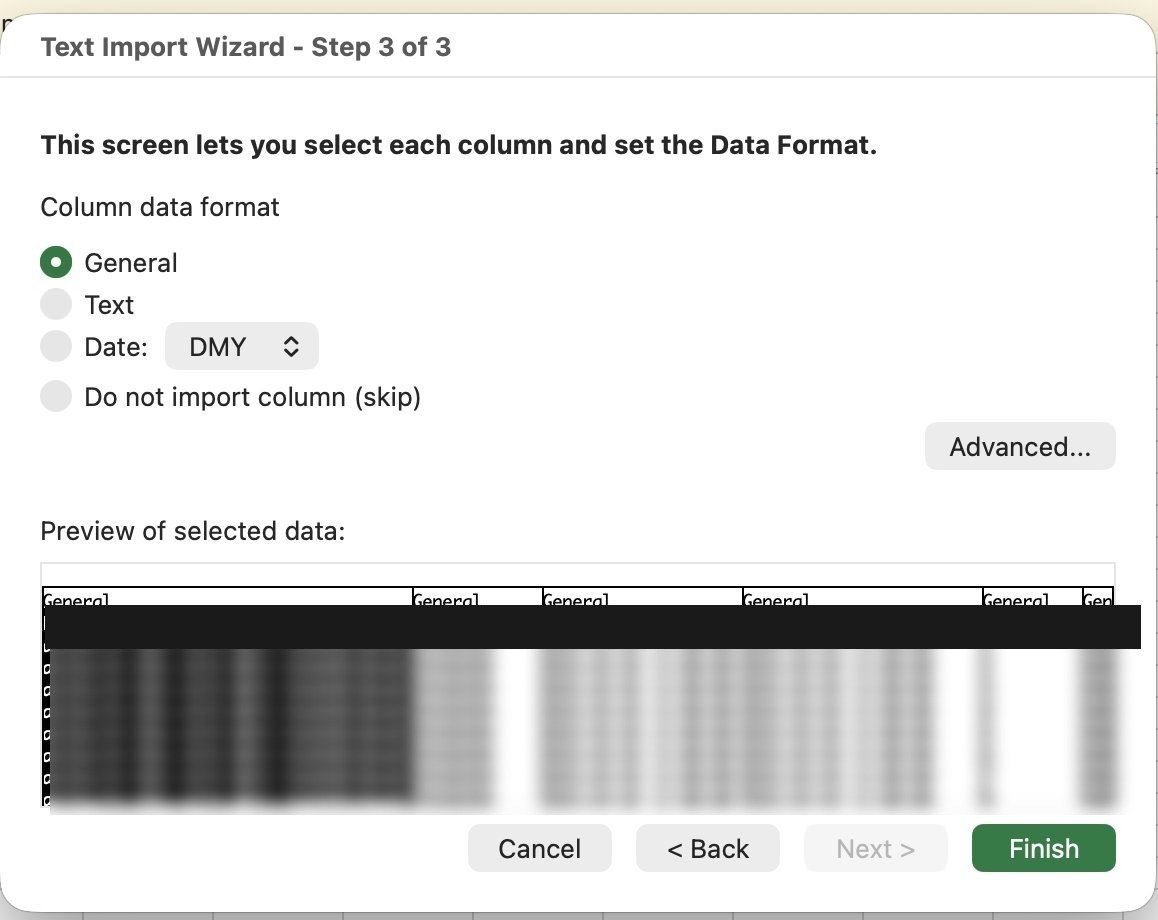
Step 4 – Set column formats
1
Leave columns as General
Leave all columns set to General — this works for most data.
2
Click Finish
Click Finish to complete the import.