> ## Documentation Index
> Fetch the complete documentation index at: https://docs.procuros.io/llms.txt
> Use this file to discover all available pages before exploring further.
# Blocked Transactions
> Learn how to identify and effectively resolve blocked transactions in the Procuros network. This guide explains the most common causes and outlines the necessary steps for resolution.
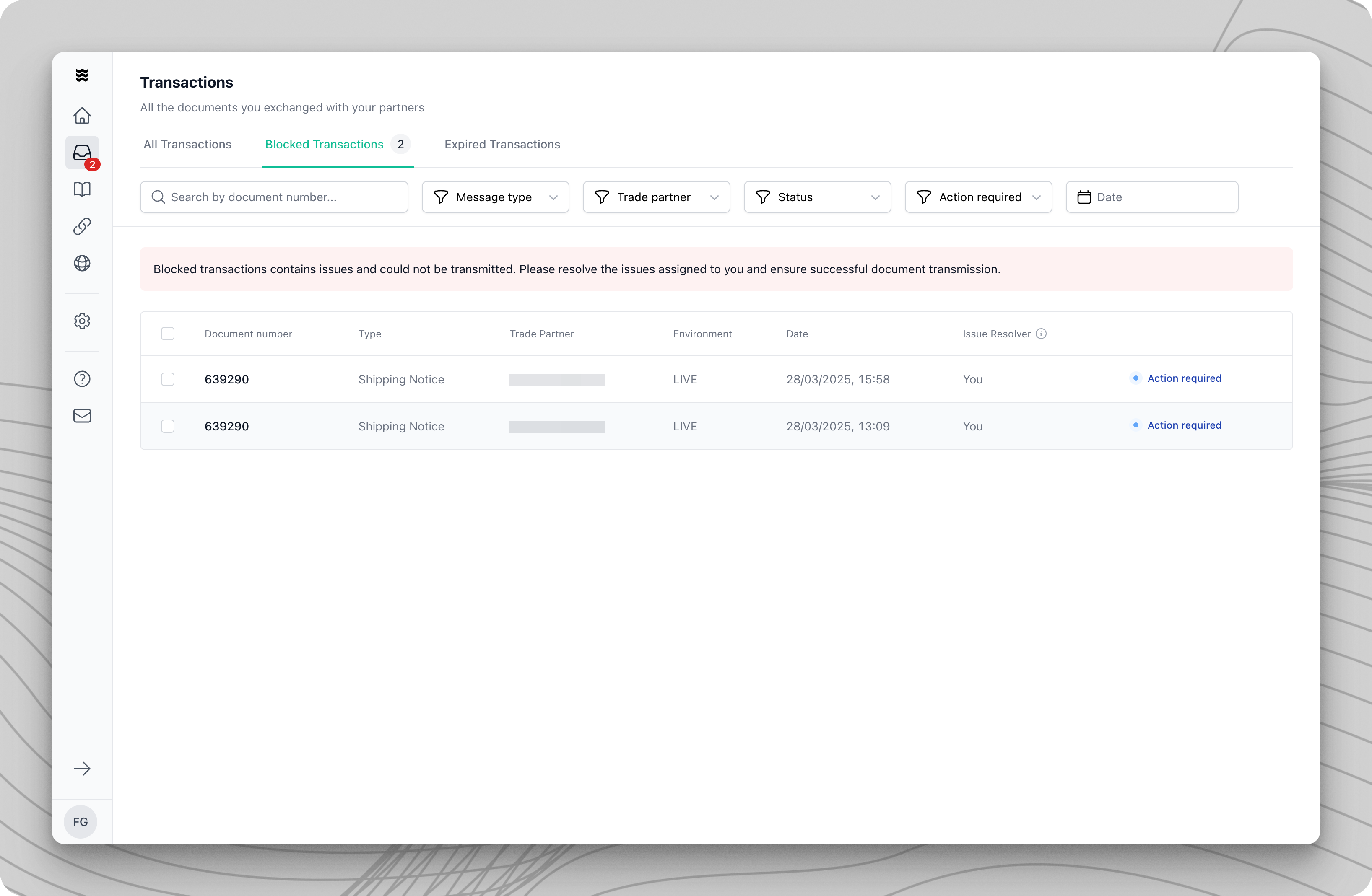 A blocked transaction occurs when an error or issue prevents a document from being successfully transmitted to the receiving trading partner. Common causes include missing information, invalid data, or misconfigurations in one of the involved systems. These situations require targeted solutions before the transaction can proceed. The Procuros system clearly indicates the necessary actions and who is responsible for resolving them.
## Accessing Blocked Transactions
Click on "Transactions" in the left sidebar.
Choose the "Blocked Transactions" tab in the top navigation bar.
If there are active blocked transactions, a red banner will appear on the dashboard. Click the "View" button to go directly to the overview.
## Error notifications
If a transaction is blocked, all responsible users will receive an error notification via email. You can add additional users in the [Portal settings](https://portal.procuros.io/settings/team-members) anytime.
### **Notification batching**
A blocked transaction occurs when an error or issue prevents a document from being successfully transmitted to the receiving trading partner. Common causes include missing information, invalid data, or misconfigurations in one of the involved systems. These situations require targeted solutions before the transaction can proceed. The Procuros system clearly indicates the necessary actions and who is responsible for resolving them.
## Accessing Blocked Transactions
Click on "Transactions" in the left sidebar.
Choose the "Blocked Transactions" tab in the top navigation bar.
If there are active blocked transactions, a red banner will appear on the dashboard. Click the "View" button to go directly to the overview.
## Error notifications
If a transaction is blocked, all responsible users will receive an error notification via email. You can add additional users in the [Portal settings](https://portal.procuros.io/settings/team-members) anytime.
### **Notification batching**
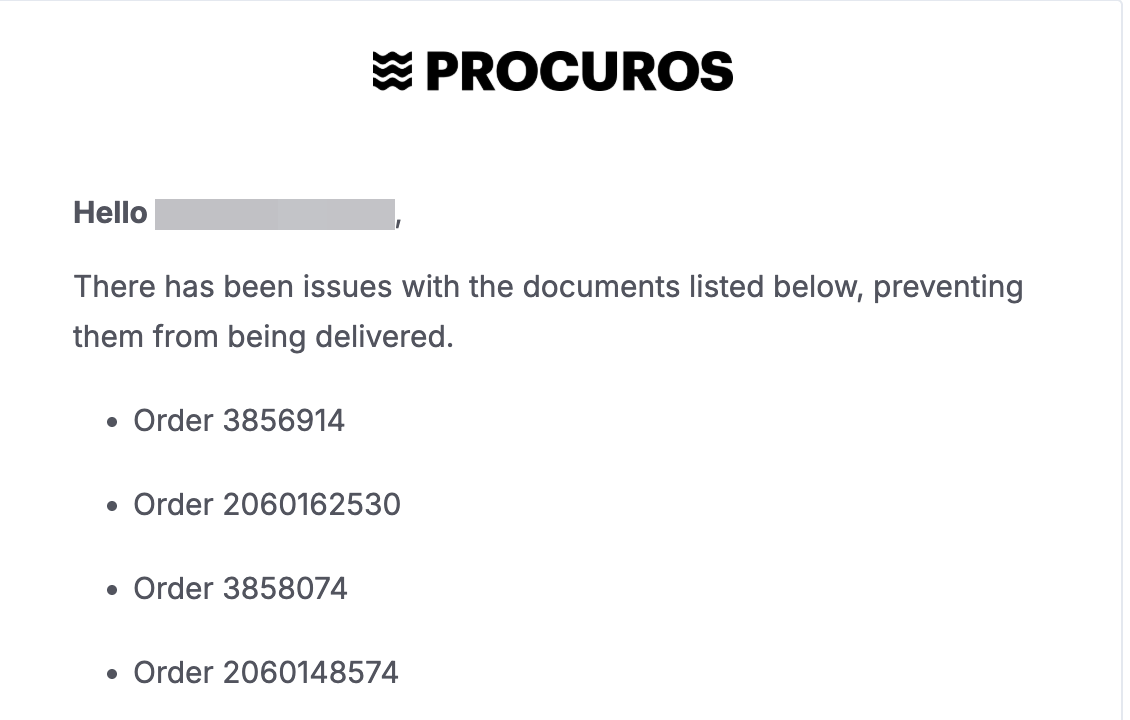 By default, transactions that are blocked within a window of 15 minutes are batched into a single notification. This is meant to keep a notification overflow in check and not crowd your email inbox. If you require any changes to this batching (e.g., because your internal workflows depend on individual notifications), please reach out to our support team ([help@procuros.io](mailto:help@procuros.io)).
## The Issue Resolver
The issue resolver is the person or organization responsible for fixing a specific problem. There are three types of issue resolvers:
* **You**: Issues requiring your direct action, such as data corrections or system errors on your side.
* **Your Trading Partner**: Issues that your partner must resolve, such as missing information or system problems on their side.
* **Procuros**: Technical issues that require system updates or manual intervention from our support team.
By default, transactions that are blocked within a window of 15 minutes are batched into a single notification. This is meant to keep a notification overflow in check and not crowd your email inbox. If you require any changes to this batching (e.g., because your internal workflows depend on individual notifications), please reach out to our support team ([help@procuros.io](mailto:help@procuros.io)).
## The Issue Resolver
The issue resolver is the person or organization responsible for fixing a specific problem. There are three types of issue resolvers:
* **You**: Issues requiring your direct action, such as data corrections or system errors on your side.
* **Your Trading Partner**: Issues that your partner must resolve, such as missing information or system problems on their side.
* **Procuros**: Technical issues that require system updates or manual intervention from our support team.
 ## Expired Transactions
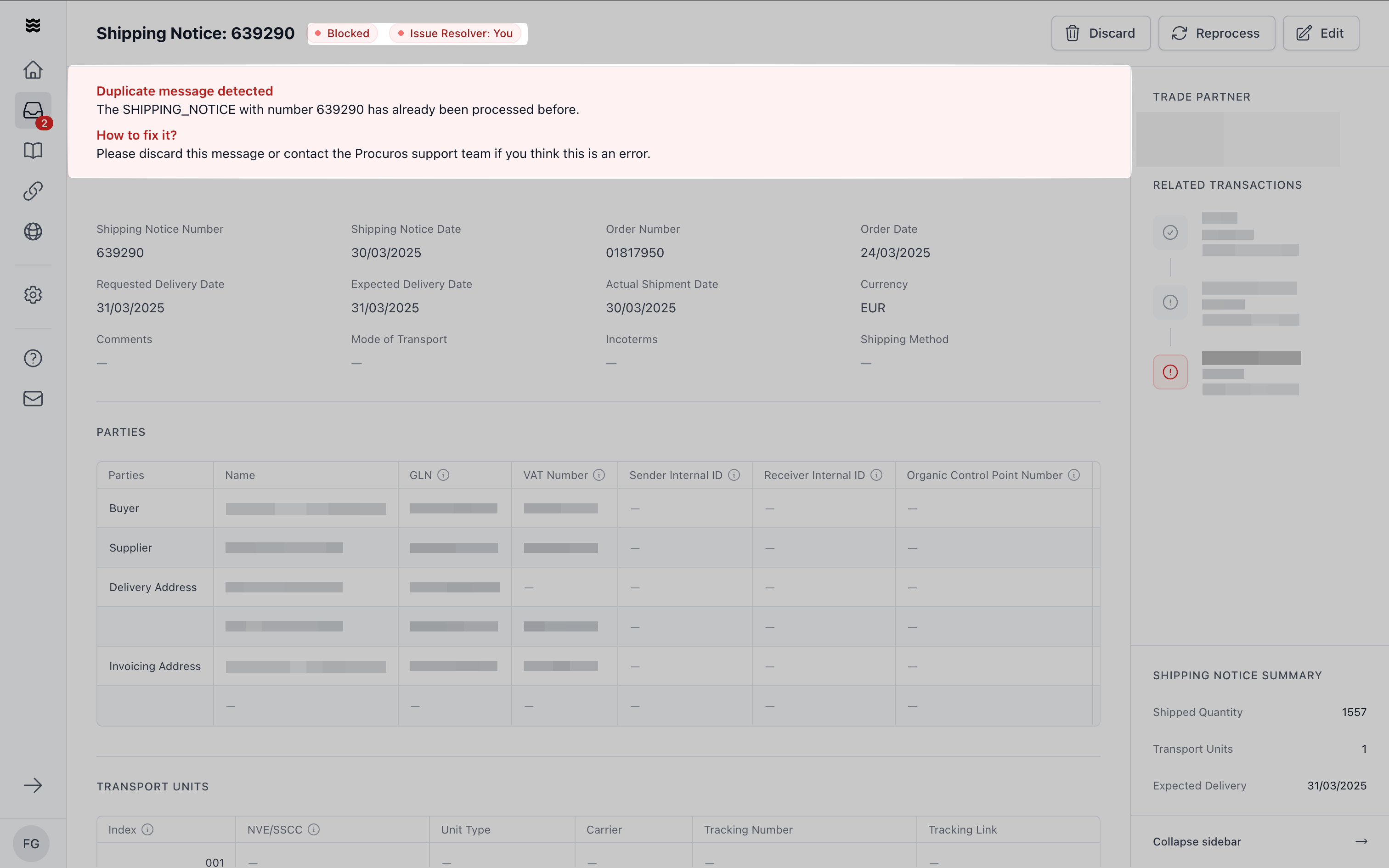
Transactions that remain blocked for more than 60 days are automatically moved to the "Expired Transactions" tab. This ensures a clear view of current issues and prevents the main overview from becoming cluttered. Expired transactions remain fully editable and are handled in the same way as blocked transactions.
Click on "Transactions" in the sidebar.
Choose "Expired Transactions."
## Expired Transactions
Transactions that remain blocked for more than 60 days are automatically moved to the "Expired Transactions" tab. This ensures a clear view of current issues and prevents the main overview from becoming cluttered. Expired transactions remain fully editable and are handled in the same way as blocked transactions.
Click on "Transactions" in the sidebar.
Choose "Expired Transactions."
 ## Common Causes of Blockages
### Data-Related Issues
These issues pertain to the content of the transaction and include:
* **Missing or Incomplete Information**:
* Missing order numbers
* Missing product codes
* Missing quantities or delivery dates
* Incomplete mandatory fields
* **Invalid Data**:
* Data that does not meet format requirements
* Violation of specific field rules
* Invoice numbers outside the allowed pattern
* Delivery quantities exceeding ordered amounts
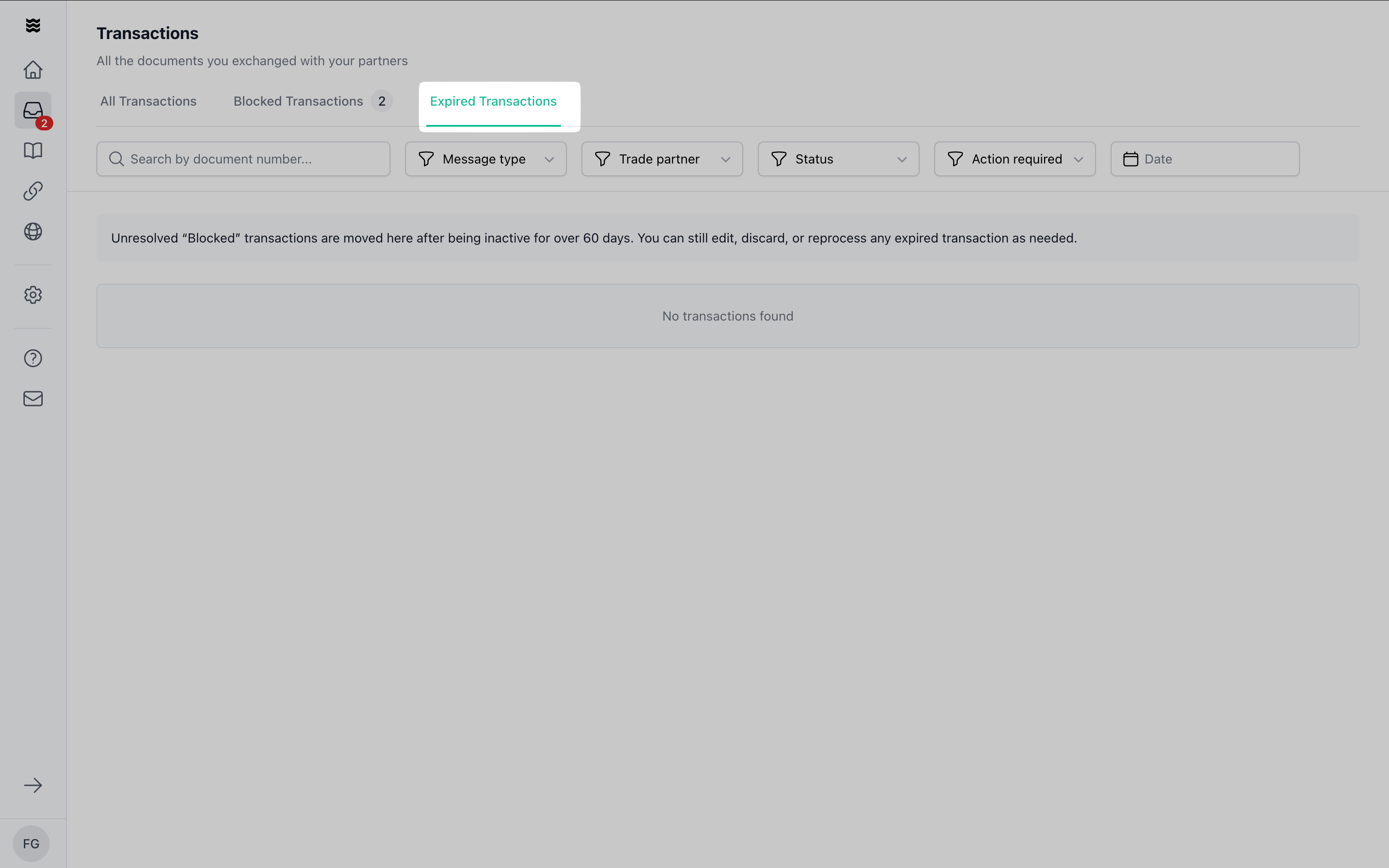
Click on fields with exclamation marks to view detailed error descriptions. Most of these issues can be resolved directly in the Procuros portal using the "Fix Issues" button in the red banner.
### System-Related Issues
These issues arise due to misconfigurations:
* Incorrect or missing master data
* Incorrect partner identifications
* Faulty system settings
For system-related issues, please follow the displayed instructions carefully. Some issues can be resolved directly in Procuros, while others require adjustments in your system.
### Procuros-Related Issues
In some cases, technical issues may arise that require support from the Procuros team. No action is needed on your part—our team will resolve the issue as quickly as possible.
## Problem Resolution
Identify the issue resolver (You, Trading Partner, or Procuros).
Check whether the issue needs to be resolved directly in Procuros or in your system.
For issues within Procuros:
* Click "Fix Issues."
* Make the necessary changes.
* Resend the document.
For system-related issues:
* Apply the required changes in your system.
* Click "Retrigger Document."
Track the status of the transaction after making corrections.
If you have already manually imported a transaction into your system, you should remove it from Procuros by selecting "Discard Transaction" and providing a reason. This prevents it from continuing to appear as blocked.
## Common Causes of Blockages
### Data-Related Issues
These issues pertain to the content of the transaction and include:
* **Missing or Incomplete Information**:
* Missing order numbers
* Missing product codes
* Missing quantities or delivery dates
* Incomplete mandatory fields
* **Invalid Data**:
* Data that does not meet format requirements
* Violation of specific field rules
* Invoice numbers outside the allowed pattern
* Delivery quantities exceeding ordered amounts
Click on fields with exclamation marks to view detailed error descriptions. Most of these issues can be resolved directly in the Procuros portal using the "Fix Issues" button in the red banner.
### System-Related Issues
These issues arise due to misconfigurations:
* Incorrect or missing master data
* Incorrect partner identifications
* Faulty system settings
For system-related issues, please follow the displayed instructions carefully. Some issues can be resolved directly in Procuros, while others require adjustments in your system.
### Procuros-Related Issues
In some cases, technical issues may arise that require support from the Procuros team. No action is needed on your part—our team will resolve the issue as quickly as possible.
## Problem Resolution
Identify the issue resolver (You, Trading Partner, or Procuros).
Check whether the issue needs to be resolved directly in Procuros or in your system.
For issues within Procuros:
* Click "Fix Issues."
* Make the necessary changes.
* Resend the document.
For system-related issues:
* Apply the required changes in your system.
* Click "Retrigger Document."
Track the status of the transaction after making corrections.
If you have already manually imported a transaction into your system, you should remove it from Procuros by selecting "Discard Transaction" and providing a reason. This prevents it from continuing to appear as blocked.