> ## Documentation Index
> Fetch the complete documentation index at: https://docs.procuros.io/llms.txt
> Use this file to discover all available pages before exploring further.
# Credit Notes
> Learn how to create and manage credit notes for existing invoices in Procuros WebEDI.
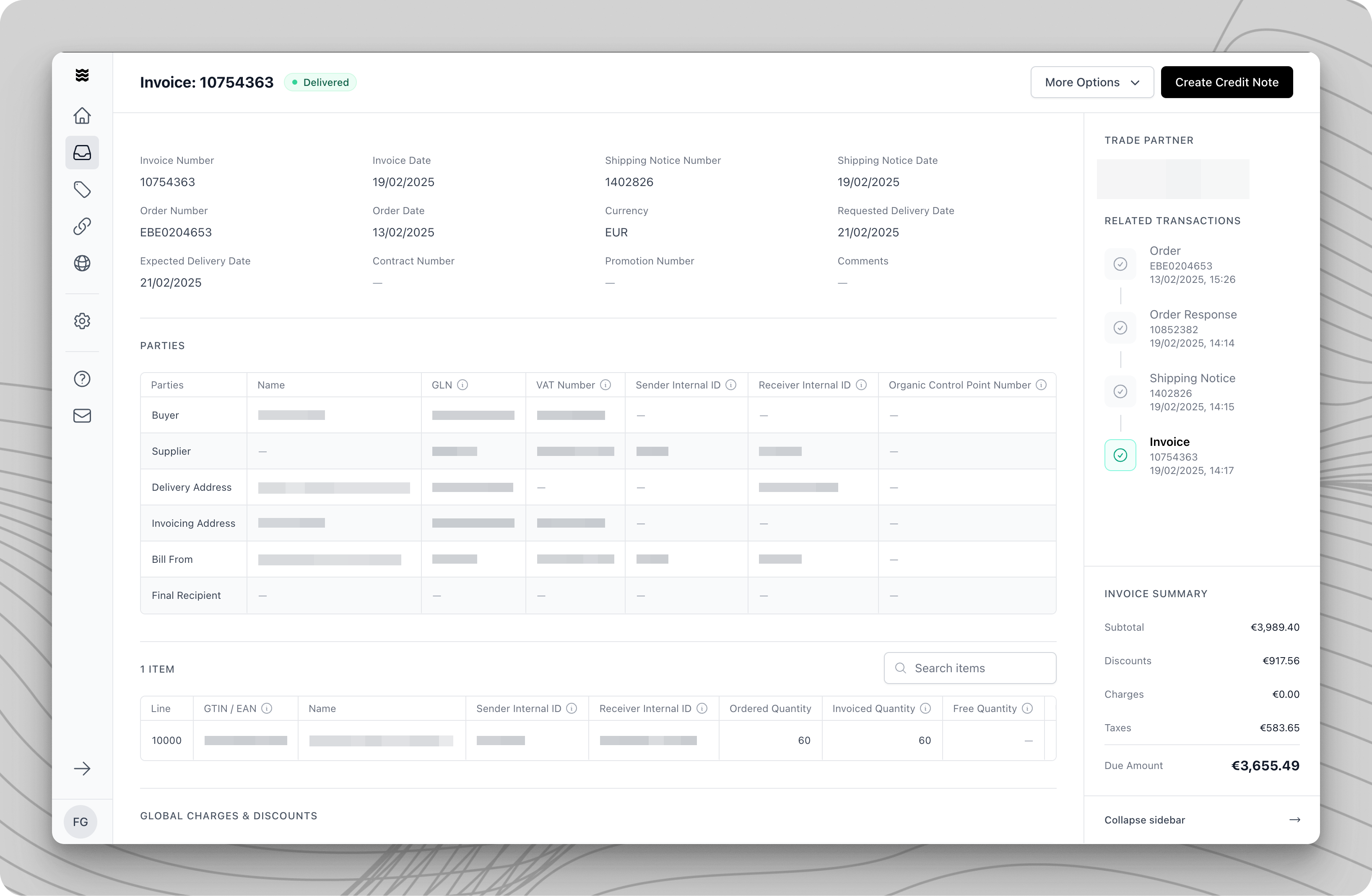 A credit note is a document used to correct or partially cancel an already sent invoice. It allows you to refund amounts due to returns, price adjustments, or complaints.
## Three Ways to Provide Credit Notes
As a supplier, you have three options for providing Invoices via in Procuros
Create Credit Notes directly in the Procuros portal using the built-in form interface.
**Steps to follow**
1. Open the [invoice](/en/general/portal/transactions/sending-invoices) for which you want to create a credit note.
2. Click "Create Credit Note" in the top right corner.
3. Select “Create Manually”.
4. The input form opens for manual editing with the transferred data from the invoice.
The credit note document contains similar sections to an invoice:
* Credit Note Number\*
* Credit Note Due Date\*
* Credit Note Date (default is the current date)
* Currency \*
* Order Number\*
* Reason for the Credit Note
\*mandatory fields
All relevant details about the involved trading partners:
* Buyer (the ordering trading partner)
* Supplier (your company)
* Invoice Address
* Delivery Address
A detailed tabular overview of all order or invoice positions, including:
* Item Number and Description
* Quantity and Unit
* Unit price and Total Price
* Tax Rate
* Line Item Discounts
Overview of all price-related additions and deductions:
* Discounts at the Item Level
* Surcharges at the Document Level
* Special Conditions
* Total Discounts
Details of the agreed payment conditions:
* Payment Deadline
* Early Payment Discount Conditions
* Payment Method
* Bank Details
1. Review Line Items
* All positions from the original [invoice](/en/general/portal/transactions/sending-invoices) are listed. You can:
* Adjust quantities
* Correct prices
* Remove positions
2. Set Credit Note Amount
* Click on the position to be corrected.
* Enter the credited quantity.
* Adjust the price if necessary.
* The system automatically calculates the credit amount.
The credited quantity cannot exceed the originally invoiced quantity.
Like an invoice, credit notes allow for global adjustments:
**Available Options**
* Credit discounts: Correct previously granted discounts.
* Credit fees: Refund previously charged fees.
* Multiple calculation levels available.
**Reviewing and Sending the Document**
1. **Checking Mandatory Fields**
* Credit Note Number
* Credit Note Date
* Reference to the original invoice
* Correct amounts and quantities
2. **Resolve Issues**
* Problematic fields are highlighted in red.
* Error messages provide correction hints.
* Use "Next Issue" for systematic correction.
3. **Send Credit Note**
* After a successful review, send the credit note by clicking "Send".
**Advantage to create a Credit Note manually**\
If you can’t provide credit notes differently this is your option to easily create them.
Upload an existing Credit Note as a PDF file.
**Steps to follow**
1. Open the corresponding Invoice.
2. Click on “Create Credit Note” in the top right corner.
3. Select “Upload Document.”
4. Upload an existing Credit Note.
If you submit your credit note via portal upload **for the first time**, processing may take up to 24 hours while the Procuros team configures the scanning system. Please always use a single PDF document format.
Manually uploaded documents are directly enriched with the initial order and invoice information - therefore we need less information.
**Steps to follow**
1. Get your personalized “Procuros inbound” email after your first order. Contact [**help@procuros.com**](mailto:help@procuros.com) in case you did not receive it.
2. Send PDF of your credit notes to your personalized “Procuros inbound” email (no subject or text needed). We recommend saving this email in your system for automatic sending or setup automatic forwarding within your ERP or email client. Learn more about it [**here**](https://docs.procuros.io/en/general/portal/transactions/setting-up-email-forwarding).
3. Verify delivery status by checking the portal, where all transaction records are visible (if needed).
If you submit your credit note via “ Procuros inbound” email **for the first time**, processing may take up to 24 hours while the Procuros team configures the scanning system. Please always use a single PDF document format.
**Key Rules for Email PDF Forwarding**
1. Only send one credit note per PDF file. Do not send multiple credit notes within one PDF file.
* Our system will only process the first one and disregard all others
* Maximum capacity = 10 PDF files or 30 MB
2. Provide all necessary information on the credit notes.
3. Only credit notes for orders received via Procuros will be processed - others will be rejected.
4. If your credit note wasn’t processed, you will receive an email with the explanation. If this email directs you to the portal, please follow the instructions there.
A credit note is a document used to correct or partially cancel an already sent invoice. It allows you to refund amounts due to returns, price adjustments, or complaints.
## Three Ways to Provide Credit Notes
As a supplier, you have three options for providing Invoices via in Procuros
Create Credit Notes directly in the Procuros portal using the built-in form interface.
**Steps to follow**
1. Open the [invoice](/en/general/portal/transactions/sending-invoices) for which you want to create a credit note.
2. Click "Create Credit Note" in the top right corner.
3. Select “Create Manually”.
4. The input form opens for manual editing with the transferred data from the invoice.
The credit note document contains similar sections to an invoice:
* Credit Note Number\*
* Credit Note Due Date\*
* Credit Note Date (default is the current date)
* Currency \*
* Order Number\*
* Reason for the Credit Note
\*mandatory fields
All relevant details about the involved trading partners:
* Buyer (the ordering trading partner)
* Supplier (your company)
* Invoice Address
* Delivery Address
A detailed tabular overview of all order or invoice positions, including:
* Item Number and Description
* Quantity and Unit
* Unit price and Total Price
* Tax Rate
* Line Item Discounts
Overview of all price-related additions and deductions:
* Discounts at the Item Level
* Surcharges at the Document Level
* Special Conditions
* Total Discounts
Details of the agreed payment conditions:
* Payment Deadline
* Early Payment Discount Conditions
* Payment Method
* Bank Details
1. Review Line Items
* All positions from the original [invoice](/en/general/portal/transactions/sending-invoices) are listed. You can:
* Adjust quantities
* Correct prices
* Remove positions
2. Set Credit Note Amount
* Click on the position to be corrected.
* Enter the credited quantity.
* Adjust the price if necessary.
* The system automatically calculates the credit amount.
The credited quantity cannot exceed the originally invoiced quantity.
Like an invoice, credit notes allow for global adjustments:
**Available Options**
* Credit discounts: Correct previously granted discounts.
* Credit fees: Refund previously charged fees.
* Multiple calculation levels available.
**Reviewing and Sending the Document**
1. **Checking Mandatory Fields**
* Credit Note Number
* Credit Note Date
* Reference to the original invoice
* Correct amounts and quantities
2. **Resolve Issues**
* Problematic fields are highlighted in red.
* Error messages provide correction hints.
* Use "Next Issue" for systematic correction.
3. **Send Credit Note**
* After a successful review, send the credit note by clicking "Send".
**Advantage to create a Credit Note manually**\
If you can’t provide credit notes differently this is your option to easily create them.
Upload an existing Credit Note as a PDF file.
**Steps to follow**
1. Open the corresponding Invoice.
2. Click on “Create Credit Note” in the top right corner.
3. Select “Upload Document.”
4. Upload an existing Credit Note.
If you submit your credit note via portal upload **for the first time**, processing may take up to 24 hours while the Procuros team configures the scanning system. Please always use a single PDF document format.
Manually uploaded documents are directly enriched with the initial order and invoice information - therefore we need less information.
**Steps to follow**
1. Get your personalized “Procuros inbound” email after your first order. Contact [**help@procuros.com**](mailto:help@procuros.com) in case you did not receive it.
2. Send PDF of your credit notes to your personalized “Procuros inbound” email (no subject or text needed). We recommend saving this email in your system for automatic sending or setup automatic forwarding within your ERP or email client. Learn more about it [**here**](https://docs.procuros.io/en/general/portal/transactions/setting-up-email-forwarding).
3. Verify delivery status by checking the portal, where all transaction records are visible (if needed).
If you submit your credit note via “ Procuros inbound” email **for the first time**, processing may take up to 24 hours while the Procuros team configures the scanning system. Please always use a single PDF document format.
**Key Rules for Email PDF Forwarding**
1. Only send one credit note per PDF file. Do not send multiple credit notes within one PDF file.
* Our system will only process the first one and disregard all others
* Maximum capacity = 10 PDF files or 30 MB
2. Provide all necessary information on the credit notes.
3. Only credit notes for orders received via Procuros will be processed - others will be rejected.
4. If your credit note wasn’t processed, you will receive an email with the explanation. If this email directs you to the portal, please follow the instructions there.