> ## Documentation Index
> Fetch the complete documentation index at: https://docs.procuros.io/llms.txt
> Use this file to discover all available pages before exploring further.
# Orders
> Learn how to efficiently process open orders in the Procuros Portal. This guide shows you how to access orders and process them, including creating subsequent documents.
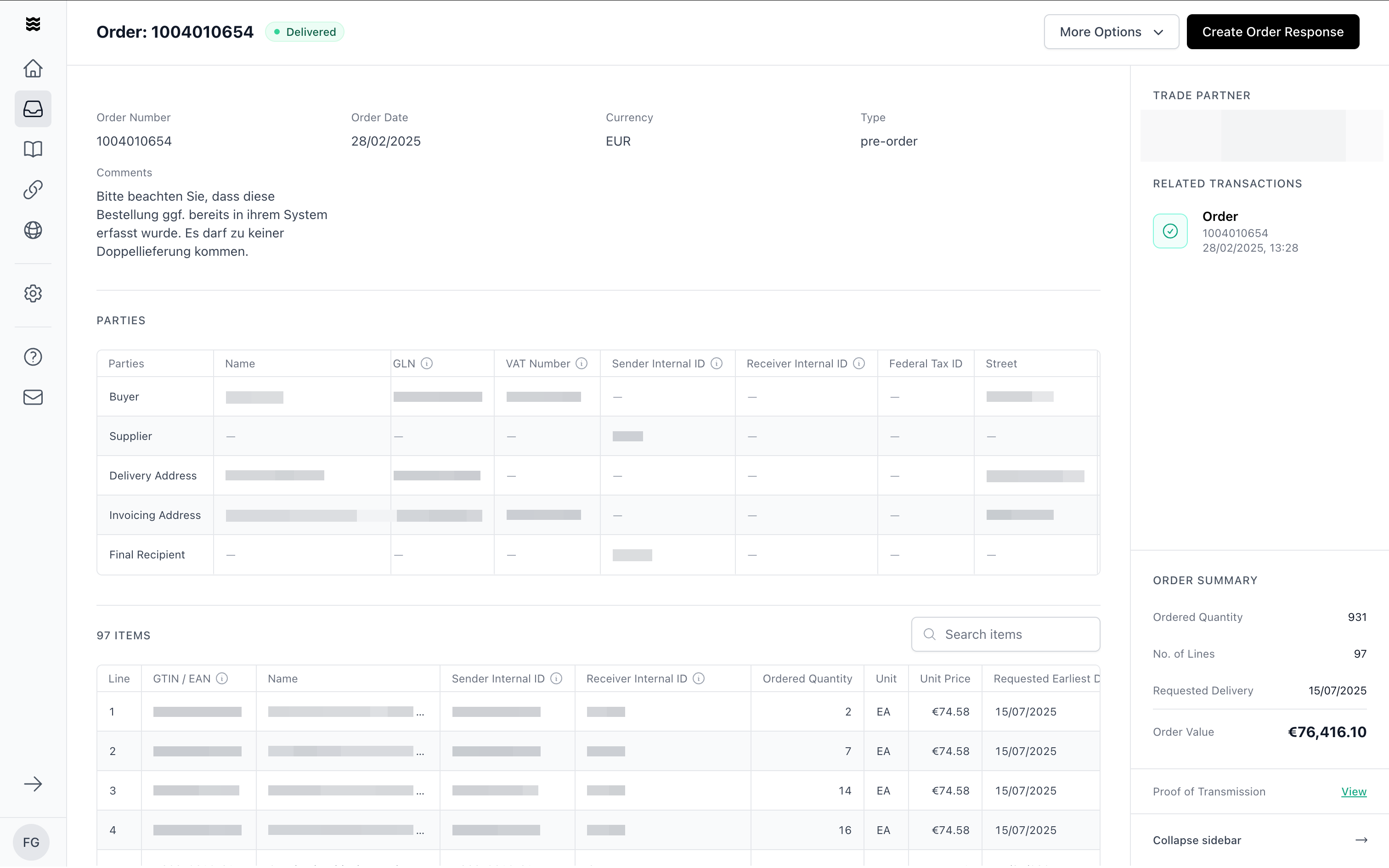 The Procuros Portal allows you to centrally manage all incoming orders. You can view open orders, process them, and directly create follow-up documents such as order confirmations or shipping notices. This guide explains how to efficiently work with incoming orders.
## Accessing Open Orders
Navigate to the "Transactions" section and filter by the document type "Order." This will display all orders in chronological order.
## Viewing Order Details
After selecting an order, you will enter the detail view. Here, you will find:
* Order number and order date
* Comments from the trading partner or Procuros
* Complete list of ordered items
* Delivery and invoice addresses
* Transmission records and document status
## Processing an Order
Check the order details and any comments from the trading partner. The transmission record in the right sidebar confirms successful delivery.
Depending on your integration, you can create the following documents directly from the order:
* [Order Confirmation](/en/general/portal/transactions/sending-order-responses)
* [Shipping Notice](/en/general/portal/transactions/sending-shipping-notices)
* [Invoice](/en/general/portal/transactions/sending-invoices)
Use the corresponding buttons in the upper right corner.
For documents that support uploading PDF or CSV files, you can choose between "Create Manually" and "Upload Document."
## Additional Options
You can download any order as a PDF or CSV file. Use the "More Options" dropdown menu in the upper right corner of the detail view.
All follow-up documents, such as order confirmations or shipping notices, are automatically assigned to the correct trading partner and linked in the transaction history.
The Procuros Portal allows you to centrally manage all incoming orders. You can view open orders, process them, and directly create follow-up documents such as order confirmations or shipping notices. This guide explains how to efficiently work with incoming orders.
## Accessing Open Orders
Navigate to the "Transactions" section and filter by the document type "Order." This will display all orders in chronological order.
## Viewing Order Details
After selecting an order, you will enter the detail view. Here, you will find:
* Order number and order date
* Comments from the trading partner or Procuros
* Complete list of ordered items
* Delivery and invoice addresses
* Transmission records and document status
## Processing an Order
Check the order details and any comments from the trading partner. The transmission record in the right sidebar confirms successful delivery.
Depending on your integration, you can create the following documents directly from the order:
* [Order Confirmation](/en/general/portal/transactions/sending-order-responses)
* [Shipping Notice](/en/general/portal/transactions/sending-shipping-notices)
* [Invoice](/en/general/portal/transactions/sending-invoices)
Use the corresponding buttons in the upper right corner.
For documents that support uploading PDF or CSV files, you can choose between "Create Manually" and "Upload Document."
## Additional Options
You can download any order as a PDF or CSV file. Use the "More Options" dropdown menu in the upper right corner of the detail view.
All follow-up documents, such as order confirmations or shipping notices, are automatically assigned to the correct trading partner and linked in the transaction history.