> ## Documentation Index
> Fetch the complete documentation index at: https://docs.procuros.io/llms.txt
> Use this file to discover all available pages before exploring further.
# Create Price Catalogs
> Learn how to create and manage price catalogs for your trading partners. Price catalogs allow you to maintain and share current product information and pricing with your trading partners.
Price catalogs allow you to share current product information and pricing with your trading partners.
1. **Open the Price Catalogs menu**
* In the side bar, click “Price Catalogs”.
2. **Choose your trading partner**
* Select your trade partner for whom you want to submit a price catalog.
3. **Click on “Create Price Catalog”**
* Start the submission process by clicking on “Create Price Catalog”.
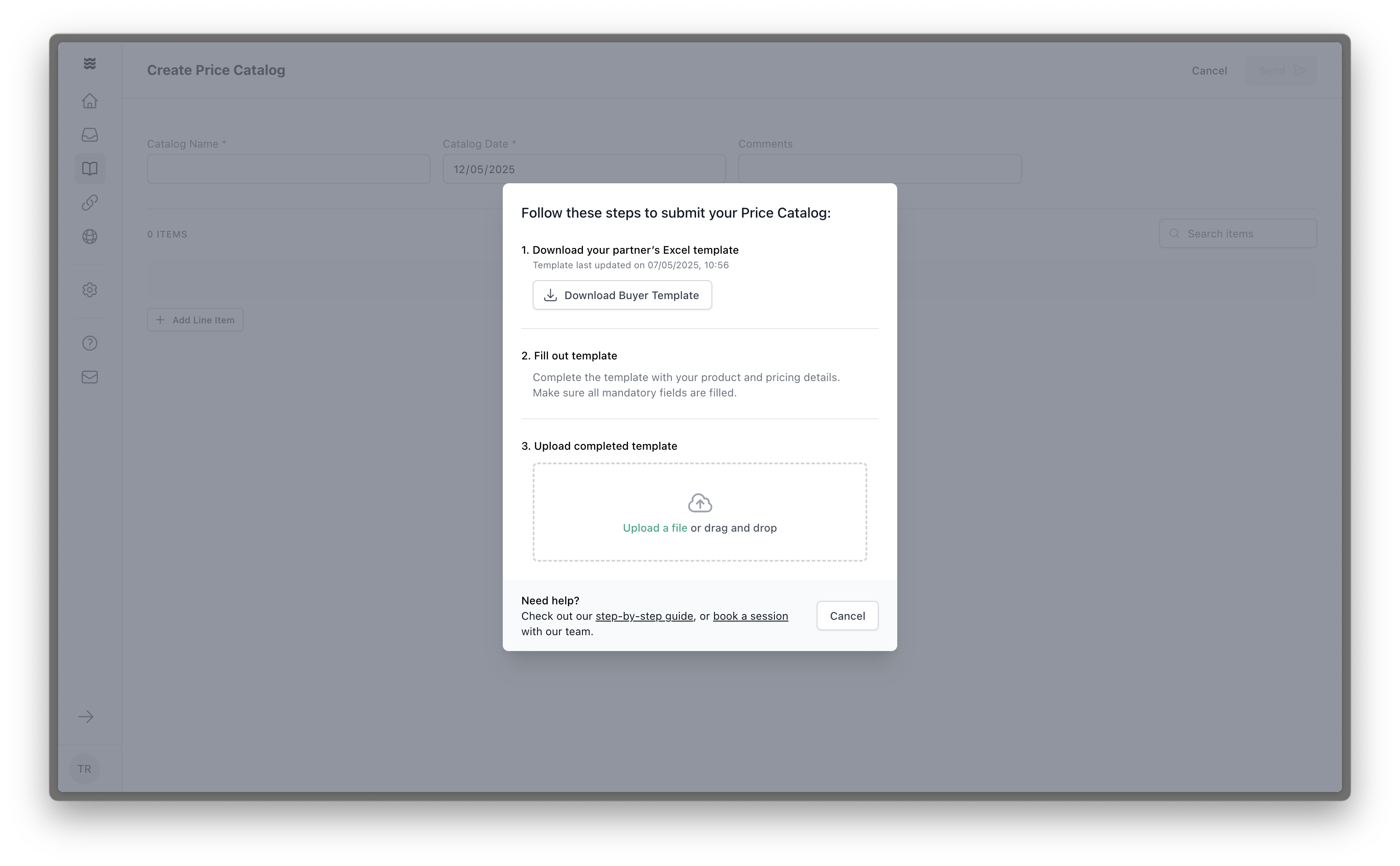
1. **Download your partner’s template**
* Open the file in Microsoft Excel or in the spreadsheets editor of your choice. **Do not use your own Excel or spreadsheets** since it will be blocked by the system.
2. **Add in your data**
* Fill out the template by adding all required product and pricing information. You can just copy / paste whatever is available from other sheets you might already have. For further explanations, go to the Data Fields section below.
3. **Upload completed template**
* Once finalized, save the file to your computer and upload the filled out version to Procuros.
Note: The system will ignore any additional columns not present in the original template.
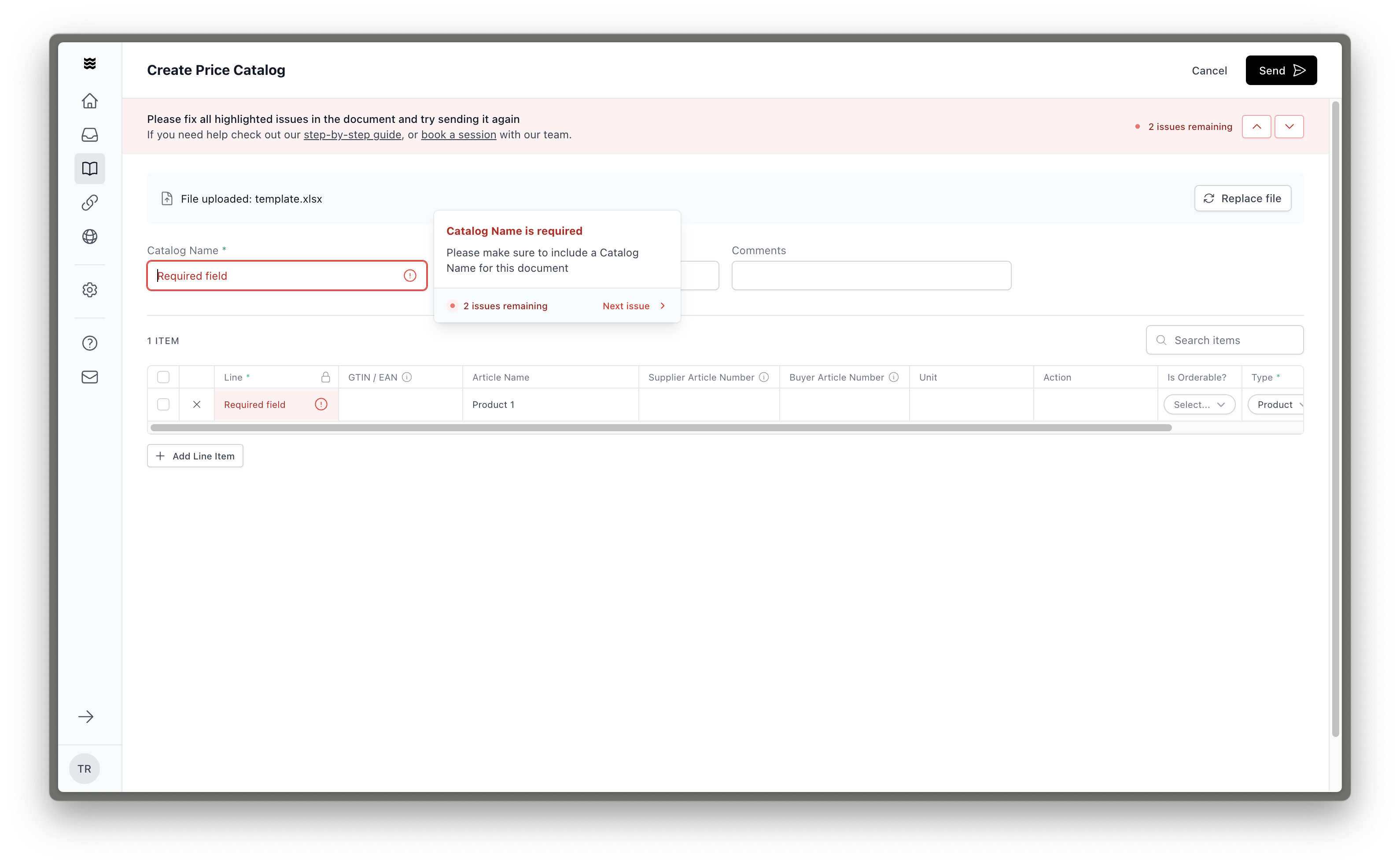
1. **Review data validation results**
* Make sure that the data was translated as intended.
2. **Address any flagged errors**
* Potential errors will be highlighted in red.
3. **Name your Price Catalog**
* Use a unique identifier that is aligned with your byuer.
4. **Set a Price Catalog date**
* We recommend using the date on which you submit your Price Catalog.
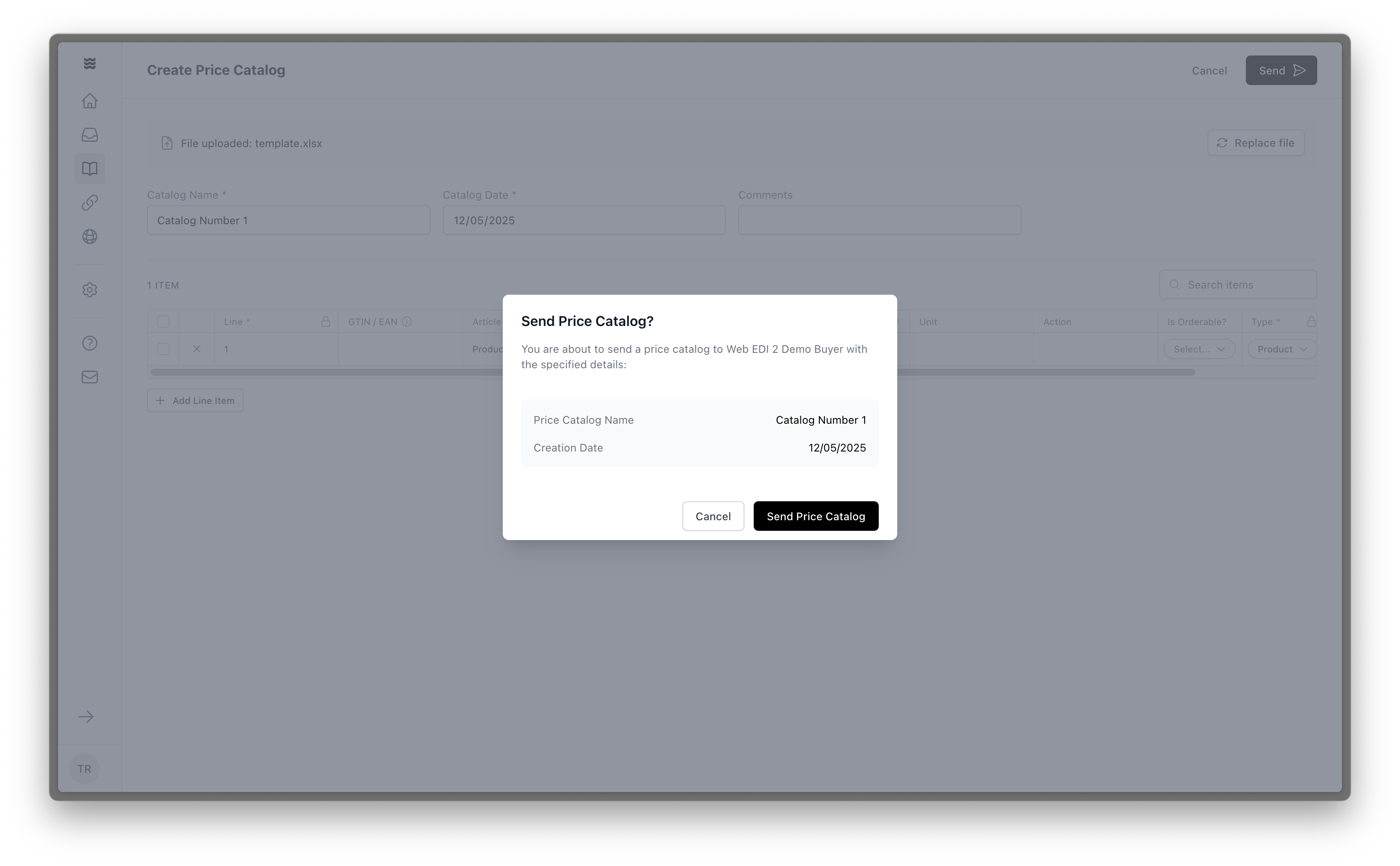
5. **Submit your Price Catalog**
* Your trade partner will receive the data after you click on “Send Price Catalog” in the top right corner.
Your Price Catalog will not be submitted, if you just uploaded it, but did not click on "Send Price Catalog".
### Industry-specific Data Fields
**Rules before filling in Data Fields**
* Only use your partner’s Excel template. Other documents won’t be accepted.
* Mandatory fields in the template are marked with an asterisk \*
* Optional fields in the template are displayed without asterisk
* Conditional fields are displayed with 2 asterisks \*\*
**Meaning of each Data Field**
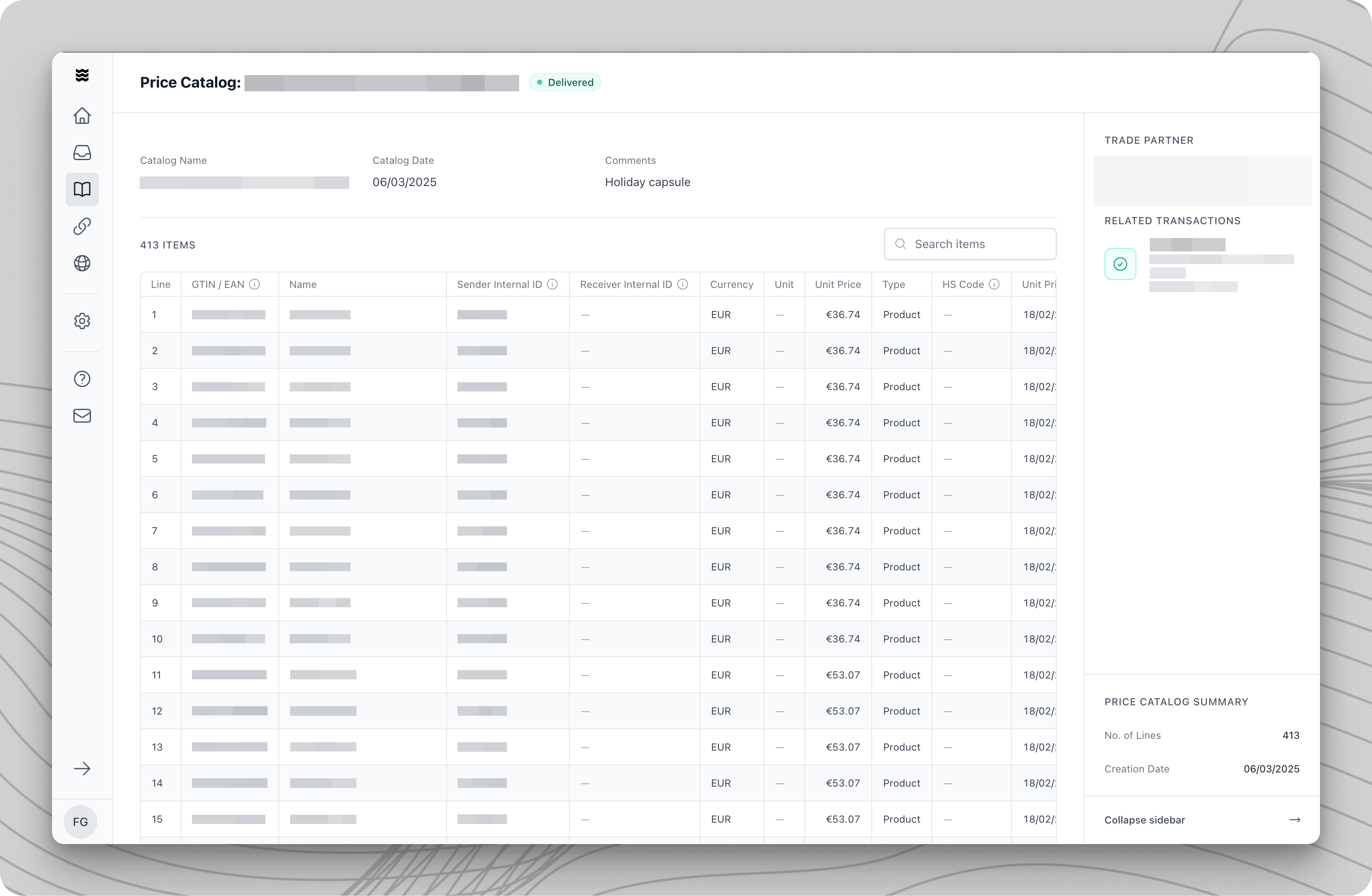
1. **GTIN/EAN\***: Global Trade Item Number/European Article Number (unique product identifier).
2. **Name\***: Product name. Do not add color, size or any other information to the name. If not sure, please reach out to [help@procuros.io](mailto:help@procuros.io).
3. **Supplier Article Number\***: Supplier's internal product identifier. Do not add color, size or any other information to the Supplier Article Number. If not sure, please reach out to [help@procuros.io](mailto:help@procuros.io).
4. **Buyer Article Number**: Buyer's internal product identifier (if available).
5. **Currency\***: Three-letter currency code (EUR, USD, etc.). Do not use other currency descriptions - they won’t be processed. Only 3 letter codes.
6. **Unit**: The sales unit e.g., piece, box, kg (if available).
7. **Unit Price\***: Price for a single unit, based on the selected unit and currency.
8. **HS Code:** Harmonized System Code is an international standard for classifying goods (if available).
9. **Unit Price Valid From\***: Start date when the unit price becomes valid. Please use only this format DD-MM-YYYY.
10. **Unit Price Valid Until**: Indicate when the current unit price expires. Please use only this format DD-MM-YYYY (if available).
11. **RRP\***: Recommended Retail Price for the product.
12. **Color Code\*\***: Product Internal color code.
13. **Color Name\*\***: Product's color in plain text (e.g., "Red", "Midnight Blue").
14. **Size\*\***: Item's size (e.g., S, M, L). If it has no size variants, use "One-size" or nothing.
15. **Dimension**: Varies by product group. Relevant only for trouser length and bra cup size. Otherwise please keep it empty. All other size related topics should be listed under size.
16. **Origin Country Code**: ISO country code where the product was manufactured (e.g., DE, CN, US). Please only write two-letter country code for product origin (if available).
**Rules before filling in Data Fields**
* Only use your partner’s Excel template. Other documents won’t be accepted.
* Mandatory fields are marked with an asterisk \*
* Optional fields are displayed without asterisk
**Meaning of each Data Field**
1. **GTIN/EAN\***: Global Trade Item Number/European Article Number (unique product identifier).
2. **Name**: Product name. Do not any other information to the Product Name. If not sure, please reach out to [help@procuros.io](mailto:help@procuros.io).
3. **Supplier Article Number**: Supplier's internal product identifier. Do not any other information to the Supplier Article Number. If not sure, please reach out to [help@procuros.io](mailto:help@procuros.io).
4. **Buyer Article Number**: Buyer's internal product identifier (if available).
5. **Unit\***: The sales unit e.g., piece, box, kg (if available).
6. **Quantity per Unit\***: Quantity of consumer units (pieces, bottles) contained in this item.
### How to Set up Article Variations & Multiple Values for a Single Field
If you have articles/products, that have **multiple values (e.g., images, packaging units) for a single field**, you can display this logic in the template in two ways:
1. **Duplicate article row** and change only specifics
2. **Add empty row** and add specifics of variation
Both methods are outlined below.
1. **Make the first entry**: include the main information of the product like GTIN, article name, price, etc.
2. **Duplicate the entire row**, including all main information.
3. **Change the parameter in the datafield that has a variation** (e.g., `Units)` only, leaving all the main information as is.
4. **Check whether the variation has dependent field** (e.g., `Per Unit Quantity`) and adapt accordingly.
1. **Make the first entry**: include the main information of the product like GTIN, article name, price, etc.
2. **Add a blank row below the entry**. If fields are empty, the template is always read as the closest article *above* the empty row.
3. **Add the parameter in the datafield that has a variation** (e.g., `Units)` only, leaving all the rest blank.
4. **Check whether the variation has dependent field** (e.g., `Per Unit Quantity`) and adapt accordingly.
 1. **Review data validation results**
* Make sure that the data was translated as intended.
2. **Address any flagged errors**
* Potential errors will be highlighted in red.
3. **Name your Price Catalog**
* Use a unique identifier that is aligned with your byuer.
4. **Set a Price Catalog date**
* We recommend using the date on which you submit your Price Catalog.
5. **Submit your Price Catalog**
* Your trade partner will receive the data after you click on “Send Price Catalog” in the top right corner.
1. **Review data validation results**
* Make sure that the data was translated as intended.
2. **Address any flagged errors**
* Potential errors will be highlighted in red.
3. **Name your Price Catalog**
* Use a unique identifier that is aligned with your byuer.
4. **Set a Price Catalog date**
* We recommend using the date on which you submit your Price Catalog.
5. **Submit your Price Catalog**
* Your trade partner will receive the data after you click on “Send Price Catalog” in the top right corner.