> ## Documentation Index
> Fetch the complete documentation index at: https://docs.procuros.io/llms.txt
> Use this file to discover all available pages before exploring further.
# Procuros Network
> Learn how to expand your trading network and connect business partners through the Procuros Network.
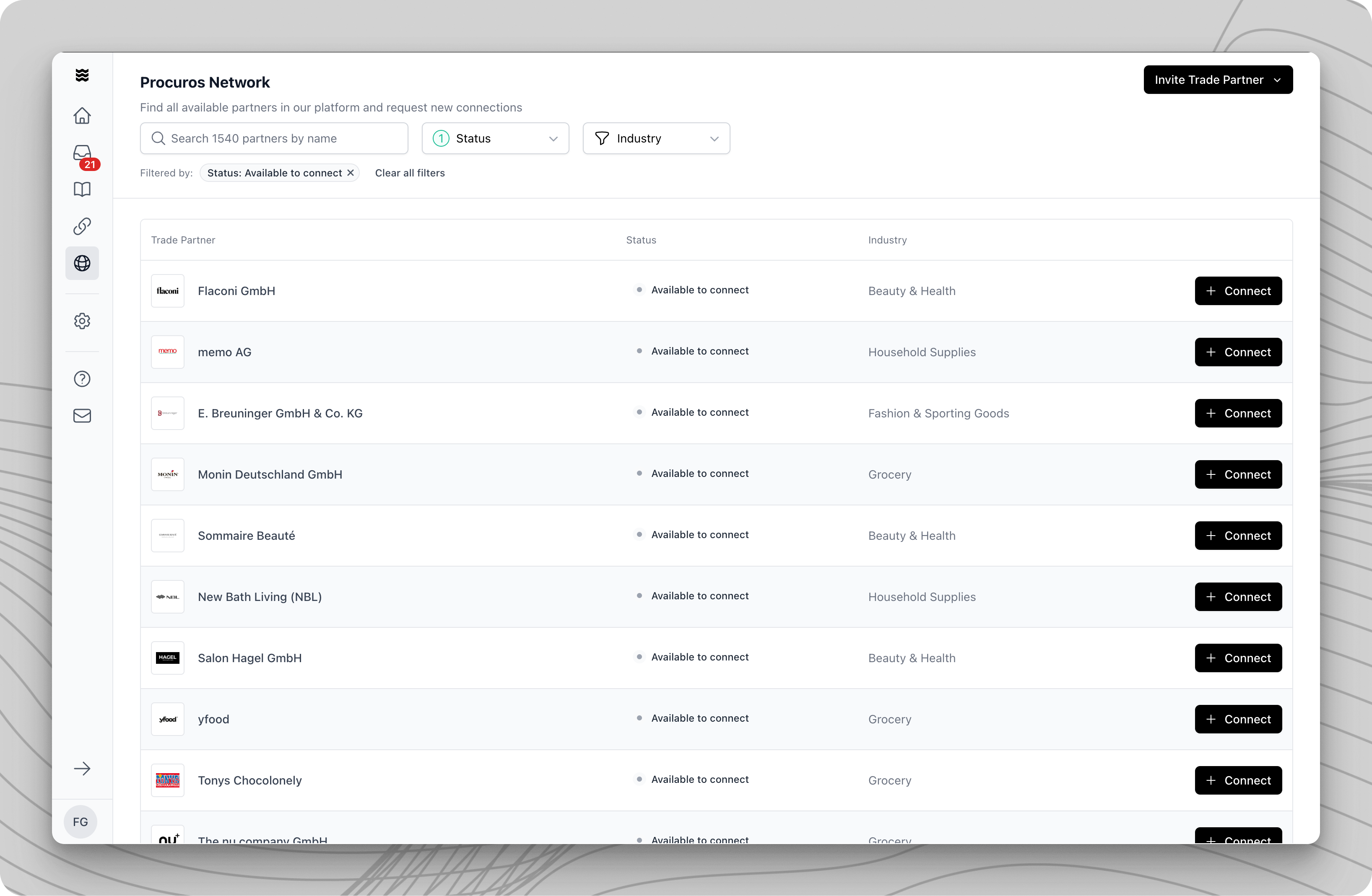 The Procuros Network allows you to digitally connect with your trading partners for the automated exchange of business documents. Through the central network overview, you can find existing partners and establish new connections.
## Find Trading Partners
The network overview offers various ways to find your trading partners:
Use the search bar at the top of the screen to search for your trading partner by name.
Use the filters for status and industry to narrow down the display:
* Status: Available to connect, Connected, Pending
* Industry: e.g., Food, Fashion, Household Goods
## Establish a Connection with a Trading Partner
Click the "Connect" button next to the desired trading partner.
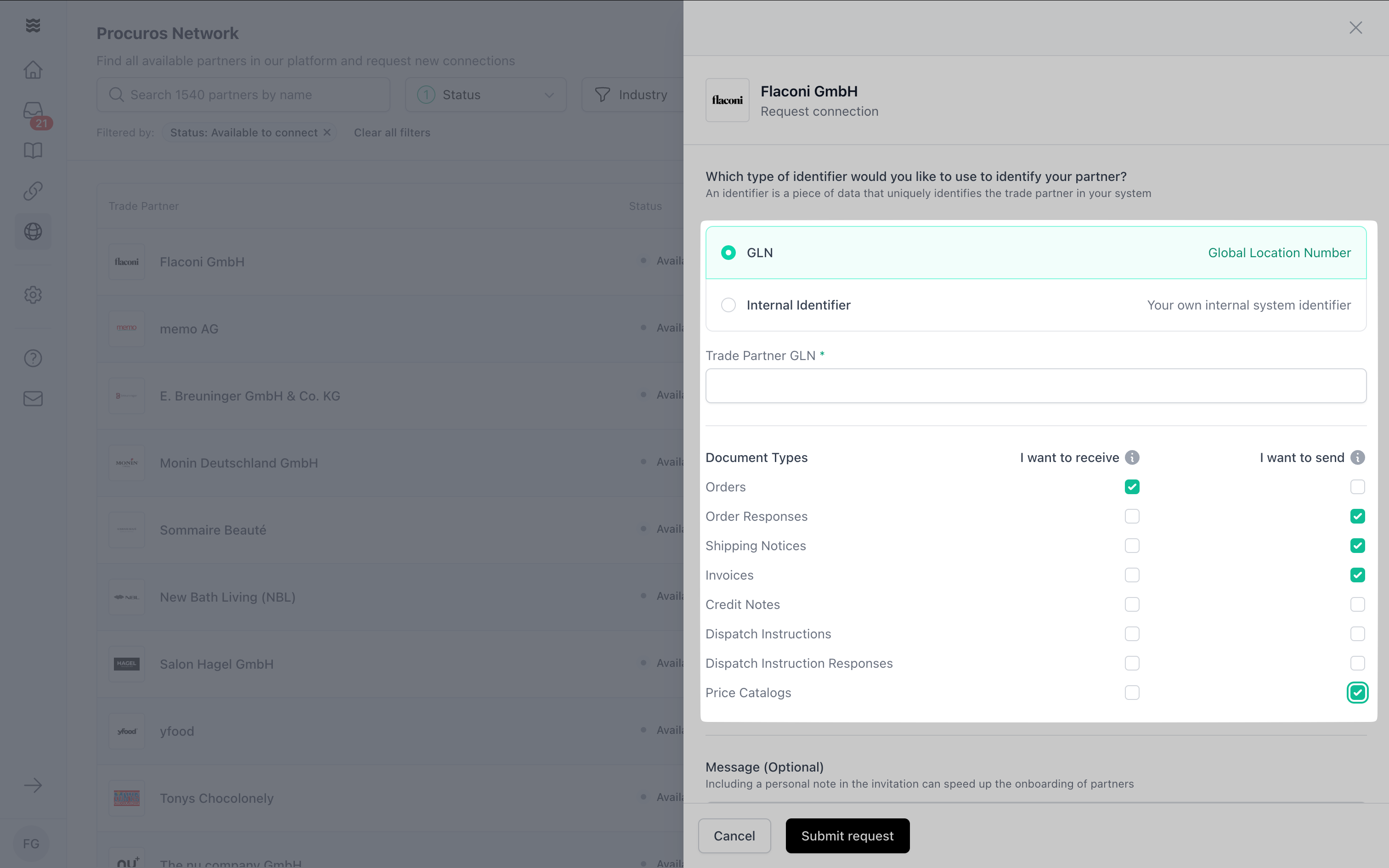
Choose the identification method:
* GLN (Global Location Number)
* Internal Identifier
Specify which document types you want to exchange:
* Receiving: e.g., Orders
* Sending: e.g., Dispatch Notifications, Invoices
The Procuros Network allows you to digitally connect with your trading partners for the automated exchange of business documents. Through the central network overview, you can find existing partners and establish new connections.
## Find Trading Partners
The network overview offers various ways to find your trading partners:
Use the search bar at the top of the screen to search for your trading partner by name.
Use the filters for status and industry to narrow down the display:
* Status: Available to connect, Connected, Pending
* Industry: e.g., Food, Fashion, Household Goods
## Establish a Connection with a Trading Partner
Click the "Connect" button next to the desired trading partner.
Choose the identification method:
* GLN (Global Location Number)
* Internal Identifier
Specify which document types you want to exchange:
* Receiving: e.g., Orders
* Sending: e.g., Dispatch Notifications, Invoices
 ## Invite New Trading Partners
If your trading partner is not yet in the Procuros Network, you have two options:
### Invite an Individual Partner
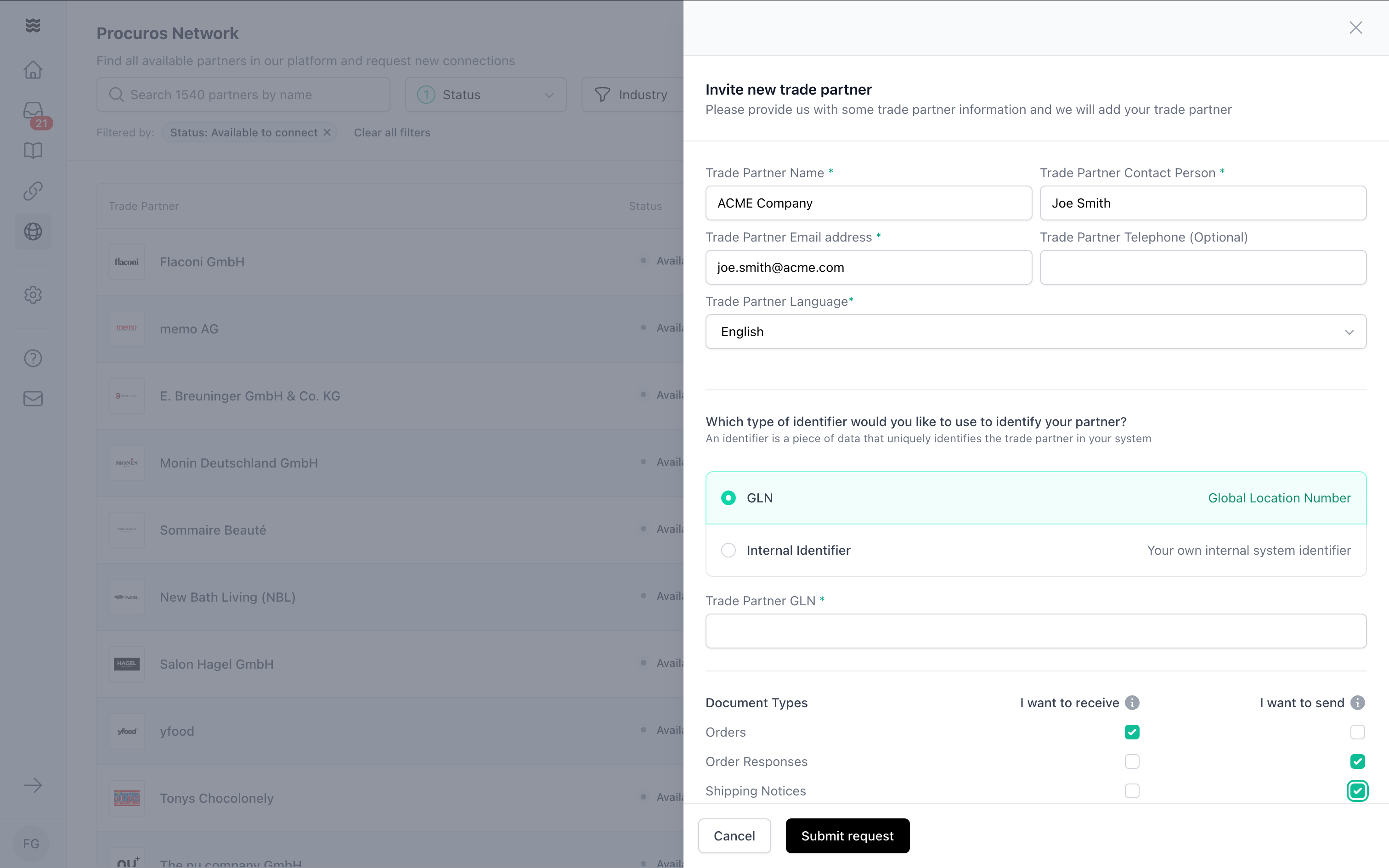
Click on "Invite Trading Partner" in the upper right corner.
Fill in the required fields:
* Trading partner name
* Contact person
* Email address
* Phone (optional)
* Preferred language
Set the GLN or internal identifier and select the desired document types.
## Invite New Trading Partners
If your trading partner is not yet in the Procuros Network, you have two options:
### Invite an Individual Partner
Click on "Invite Trading Partner" in the upper right corner.
Fill in the required fields:
* Trading partner name
* Contact person
* Email address
* Phone (optional)
* Preferred language
Set the GLN or internal identifier and select the desired document types.
 ### Invite Multiple Partners at Once
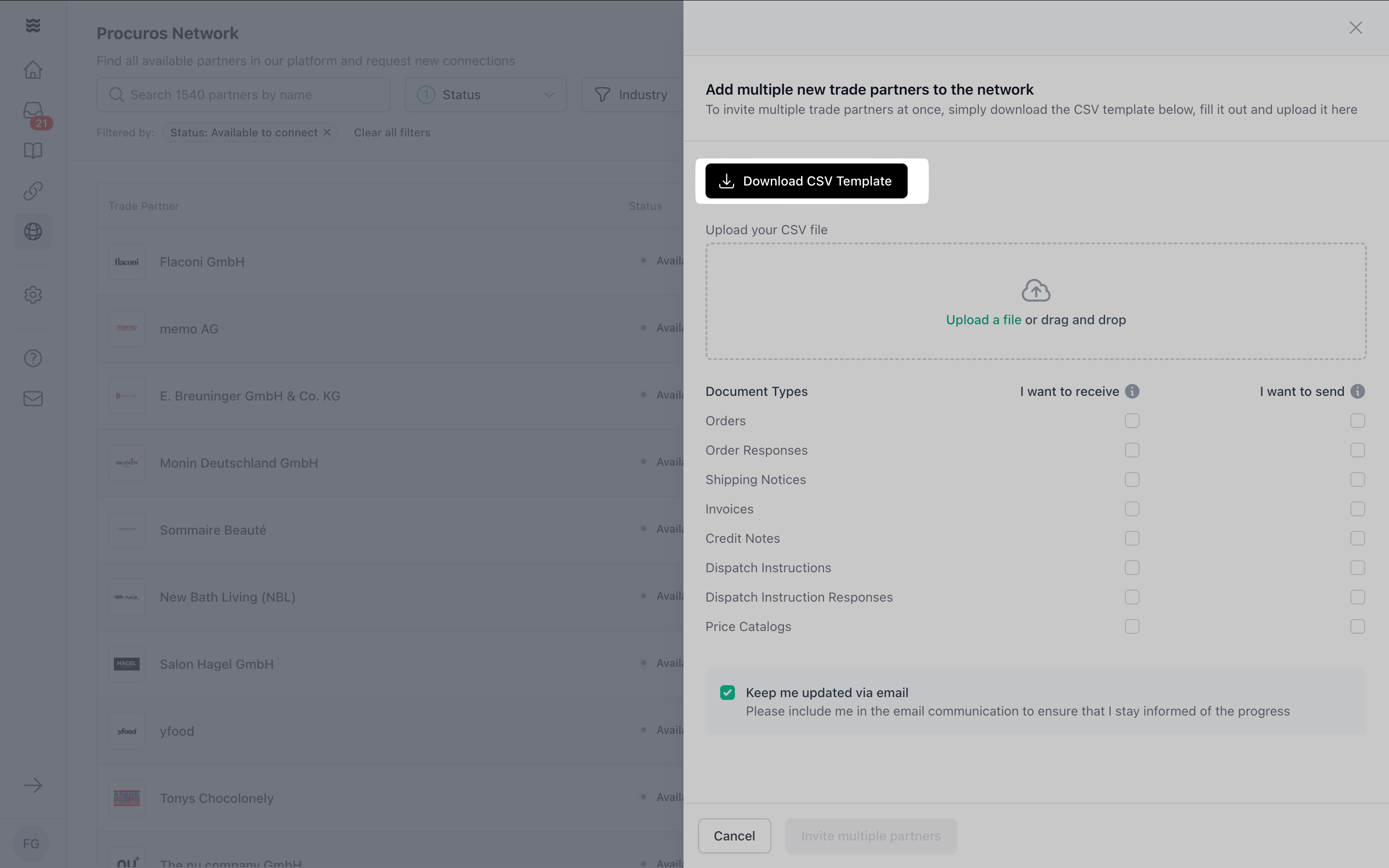
Inviting and onboarding new trading partners is free of charge. Your partners can decide which document types they want to support.
Download the CSV template via the corresponding button.
Fill out the CSV template with your trading partners' details.
Upload the completed CSV file and select the desired document types.
### Invite Multiple Partners at Once
Inviting and onboarding new trading partners is free of charge. Your partners can decide which document types they want to support.
Download the CSV template via the corresponding button.
Fill out the CSV template with your trading partners' details.
Upload the completed CSV file and select the desired document types.
 After sending the invitation, Procuros will handle the communication with your trading partners and support them in connecting to the network.