> ## Documentation Index
> Fetch the complete documentation index at: https://docs.procuros.io/llms.txt
> Use this file to discover all available pages before exploring further.
# My Connections
> An overview of your trading partner connections in Procuros – check status, activate new connections, and manage existing ones.
 ## Overview of Trading Partner Connections
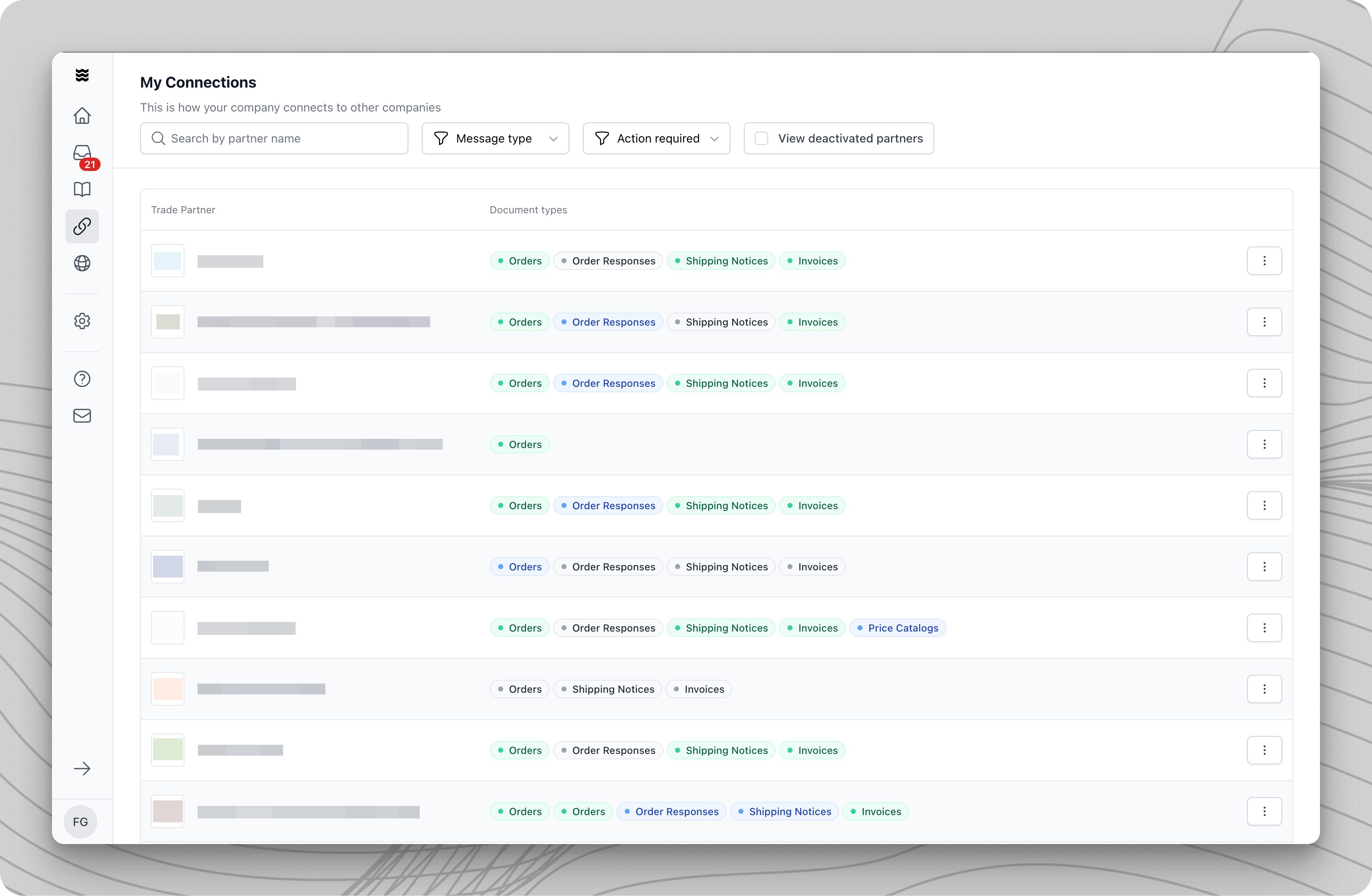
The main view displays all your trading partners and their connection status. Each partner is shown along with the available document types and their current status.
### Document Type Status
Different document types are indicated by color codes:
* **Green**: Document type is active and live
* **Blue**: Ready for test or live transactions
* **Gray**: Document type is inactive or awaiting partner action
## Navigation and Filtering
Use the search field "Search by partner name" to quickly find specific trading partners.
Filter the view by:
* Message type (e.g., orders, invoices)
* Actions required
* Show deactivated partners
## Managing Trading Partner Connections
### Open Detail View
Click on a trading partner or document type to open the detail view. This displays:
* Current connection status
* Progress of document type activation
* Required actions
Using the three-dot menu next to each partner, you can:
* Request new document types
* View transaction overview
* Access price lists (if available)
### Activating New Document Types
**Testing Phase Requirement**
A testing phase is generally required when a buyer and supplier are connected via an integration.
If a supplier is using the portal to send and receive documents, testing is typically not necessary.
For integrated connections, follow these steps to complete the testing phase:
1. Open the detail view of the desired document type.
2. Follow the displayed test instructions.
3. Send the required test documents.
4. Wait for validation from the trading partner.
The specific steps for sending test documents vary depending on the integration type. Detailed instructions can be found in the integration guide for your chosen integration method.
## Overview of Trading Partner Connections
The main view displays all your trading partners and their connection status. Each partner is shown along with the available document types and their current status.
### Document Type Status
Different document types are indicated by color codes:
* **Green**: Document type is active and live
* **Blue**: Ready for test or live transactions
* **Gray**: Document type is inactive or awaiting partner action
## Navigation and Filtering
Use the search field "Search by partner name" to quickly find specific trading partners.
Filter the view by:
* Message type (e.g., orders, invoices)
* Actions required
* Show deactivated partners
## Managing Trading Partner Connections
### Open Detail View
Click on a trading partner or document type to open the detail view. This displays:
* Current connection status
* Progress of document type activation
* Required actions
Using the three-dot menu next to each partner, you can:
* Request new document types
* View transaction overview
* Access price lists (if available)
### Activating New Document Types
**Testing Phase Requirement**
A testing phase is generally required when a buyer and supplier are connected via an integration.
If a supplier is using the portal to send and receive documents, testing is typically not necessary.
For integrated connections, follow these steps to complete the testing phase:
1. Open the detail view of the desired document type.
2. Follow the displayed test instructions.
3. Send the required test documents.
4. Wait for validation from the trading partner.
The specific steps for sending test documents vary depending on the integration type. Detailed instructions can be found in the integration guide for your chosen integration method.