> ## Documentation Index
> Fetch the complete documentation index at: https://docs.procuros.io/llms.txt
> Use this file to discover all available pages before exploring further.
# SSCC Settings
> Learn how to configure your GS1 company prefix, serial numbers, and label printer resolution for SSCC labels in the Procuros Portal.
SSCC Settings is only available if the SSCC Labels feature is enabled for your company. If you don't see this page in your Settings, contact Procuros to have it activated.
 ## What Is an SSCC?
An **SSCC (Serial Shipping Container Code)** is a globally unique 18-digit number used to identify a logistics unit, such as a pallet, carton, or container, as it moves through the supply chain. It is made up of four parts:
1. **Extension digit** — 1 digit, used to extend the capacity of the serial reference.
2. **GS1 company prefix** — 7 to 10 digits, assigned to your company by GS1.
3. **Serial reference** — fills the remaining digits, issued sequentially by Procuros.
4. **Check digit** — 1 digit, calculated automatically to detect scanning errors.
Procuros assembles the full 18-digit SSCC for you from the GS1 company prefix and serial number configured on this page — you never have to type or track a full SSCC yourself.
SSCCs are used to identify transport units on shipping notices. See [Sending Shipping Notices](/en/general/portal/transactions/sending-shipping-notices) for how they fit into a shipment, and [Package Identification](/en/api/v2/features-package-identification) for how they appear in the API.
## SSCC Generation
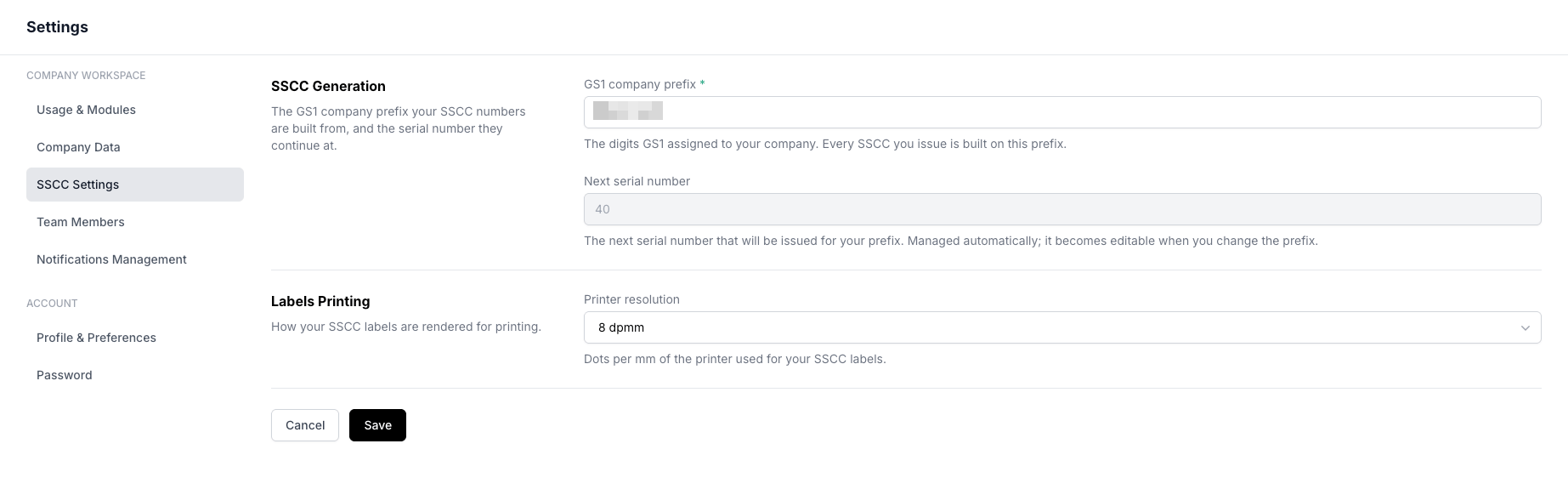
Click on **Settings** in the left navigation bar and then select **SSCC Settings**.
In **GS1 company prefix**, enter the digits GS1 assigned to your company. Every SSCC you issue is built on this prefix. You can obtain a prefix from your national GS1 member organization if you don't already have one.
**Next serial number** shows the next serial number that will be issued for your prefix. It is managed automatically and stays read-only unless you change the prefix above.
Changing the GS1 company prefix turns the field into **First serial number** — the serial number to start from. Leave it empty to start from 1, or set it if you've already printed SSCCs elsewhere and want numbering to continue instead of starting over.
## What Is an SSCC?
An **SSCC (Serial Shipping Container Code)** is a globally unique 18-digit number used to identify a logistics unit, such as a pallet, carton, or container, as it moves through the supply chain. It is made up of four parts:
1. **Extension digit** — 1 digit, used to extend the capacity of the serial reference.
2. **GS1 company prefix** — 7 to 10 digits, assigned to your company by GS1.
3. **Serial reference** — fills the remaining digits, issued sequentially by Procuros.
4. **Check digit** — 1 digit, calculated automatically to detect scanning errors.
Procuros assembles the full 18-digit SSCC for you from the GS1 company prefix and serial number configured on this page — you never have to type or track a full SSCC yourself.
SSCCs are used to identify transport units on shipping notices. See [Sending Shipping Notices](/en/general/portal/transactions/sending-shipping-notices) for how they fit into a shipment, and [Package Identification](/en/api/v2/features-package-identification) for how they appear in the API.
## SSCC Generation
Click on **Settings** in the left navigation bar and then select **SSCC Settings**.
In **GS1 company prefix**, enter the digits GS1 assigned to your company. Every SSCC you issue is built on this prefix. You can obtain a prefix from your national GS1 member organization if you don't already have one.
**Next serial number** shows the next serial number that will be issued for your prefix. It is managed automatically and stays read-only unless you change the prefix above.
Changing the GS1 company prefix turns the field into **First serial number** — the serial number to start from. Leave it empty to start from 1, or set it if you've already printed SSCCs elsewhere and want numbering to continue instead of starting over.
 Changing your GS1 company prefix restarts your serial number sequence, and issuing a serial number that has already been printed produces duplicate SSCCs on the network. Trading partners may reject shipping notices that reference a duplicate SSCC. Only change your prefix when GS1 has actually reassigned it, and double-check the next serial number if you do.
## Labels Printing
In **Printer resolution**, select the dots per millimeter (dpmm) of the label printer you use for SSCC labels:
| Printer resolution | Equivalent |
| ------------------ | ---------- |
| 6 dpmm | 152 dpi |
| 8 dpmm | 203 dpi |
| 12 dpmm | 300 dpi |
| 24 dpmm | 600 dpi |
If you're not sure which resolution your printer uses, check its spec sheet or configuration label. Selecting the wrong resolution can cause labels to render at the wrong physical size, which may prevent the SSCC barcode from scanning correctly.
All changes will only be applied and activated after clicking **Save**. Click **Cancel** to discard your changes.
Changing your GS1 company prefix restarts your serial number sequence, and issuing a serial number that has already been printed produces duplicate SSCCs on the network. Trading partners may reject shipping notices that reference a duplicate SSCC. Only change your prefix when GS1 has actually reassigned it, and double-check the next serial number if you do.
## Labels Printing
In **Printer resolution**, select the dots per millimeter (dpmm) of the label printer you use for SSCC labels:
| Printer resolution | Equivalent |
| ------------------ | ---------- |
| 6 dpmm | 152 dpi |
| 8 dpmm | 203 dpi |
| 12 dpmm | 300 dpi |
| 24 dpmm | 600 dpi |
If you're not sure which resolution your printer uses, check its spec sheet or configuration label. Selecting the wrong resolution can cause labels to render at the wrong physical size, which may prevent the SSCC barcode from scanning correctly.
All changes will only be applied and activated after clicking **Save**. Click **Cancel** to discard your changes.