> ## Documentation Index
> Fetch the complete documentation index at: https://docs.procuros.io/llms.txt
> Use this file to discover all available pages before exploring further.
# Manage Profile & Preferences
> Learn how to customize your personal settings in the Procuros Portal, including language, name, and notification preferences.
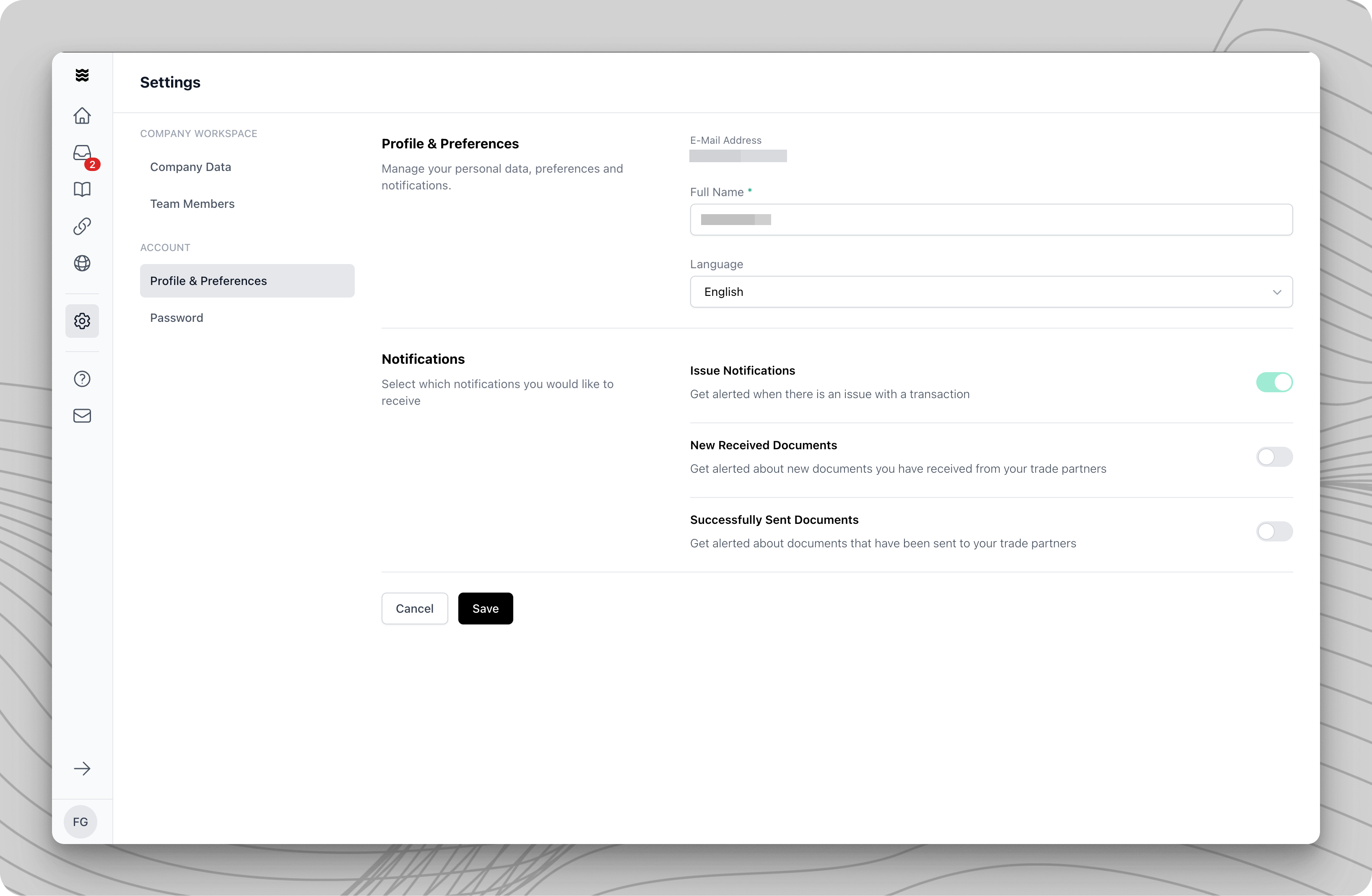 In the Profile & Preferences settings, you can manage your personal data and choose which notifications you want to receive from Procuros. These settings are specific to each user and do not affect other team members' preferences.
## Manage Profile Information
In this section, you can update basic information about your user profile.
Navigate to "Settings" in the left sidebar and select "Profile & Preferences" from the menu.
At the top of the page, you will find your email address and the option to update your name.
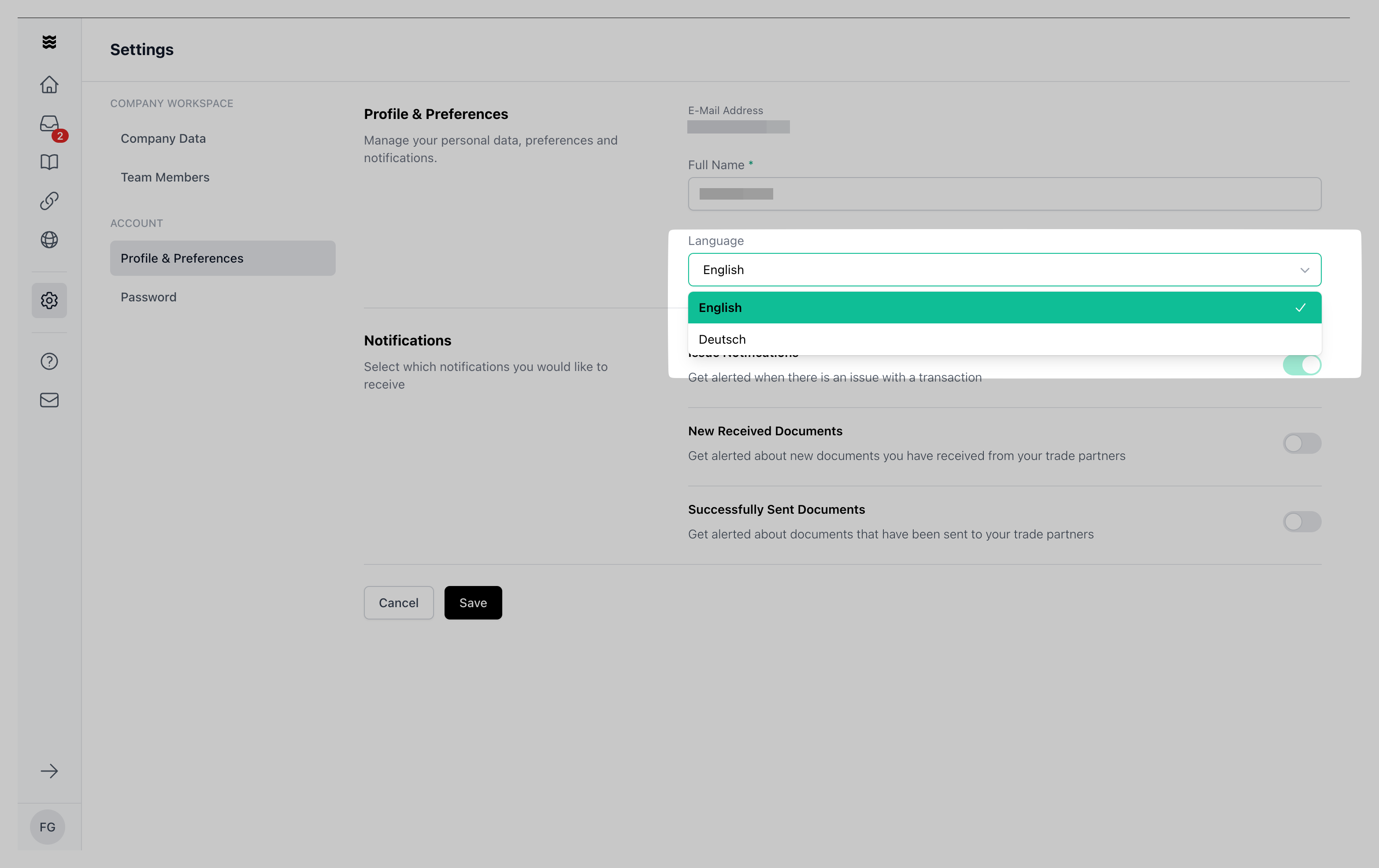
Choose your preferred language from the dropdown menu. Currently, German and English are available.
In the Profile & Preferences settings, you can manage your personal data and choose which notifications you want to receive from Procuros. These settings are specific to each user and do not affect other team members' preferences.
## Manage Profile Information
In this section, you can update basic information about your user profile.
Navigate to "Settings" in the left sidebar and select "Profile & Preferences" from the menu.
At the top of the page, you will find your email address and the option to update your name.
Choose your preferred language from the dropdown menu. Currently, German and English are available.
 ## Configure Notifications
Control which notifications you want to receive from Procuros. Notifications help keep you informed about important activities in your network.
* **Issue Notifications**: Receive alerts when there are issues with a transaction
* **New Incoming Documents**: Get notified when new documents arrive from your trading partners
* **Successfully Sent Documents**: Receive confirmation when your documents have been successfully sent to trading partners
**Exception for WebEDI users**
If you send and receive documents via our portal (WebEDI), you will receive all transaction-related notifications (e.g. new documents and reminders), even if you deactivate them in your profile. This is because emails are the only communication channel for WebEDI suppliers as they do not receive documents directly in their system.
Use the toggles next to each notification type to turn them on or off.
Click "Save" to apply your changes. The new settings will take effect immediately.
Even if you disable notifications, you can still view all your documents and transactions within the portal.
## Configure Notifications
Control which notifications you want to receive from Procuros. Notifications help keep you informed about important activities in your network.
* **Issue Notifications**: Receive alerts when there are issues with a transaction
* **New Incoming Documents**: Get notified when new documents arrive from your trading partners
* **Successfully Sent Documents**: Receive confirmation when your documents have been successfully sent to trading partners
**Exception for WebEDI users**
If you send and receive documents via our portal (WebEDI), you will receive all transaction-related notifications (e.g. new documents and reminders), even if you deactivate them in your profile. This is because emails are the only communication channel for WebEDI suppliers as they do not receive documents directly in their system.
Use the toggles next to each notification type to turn them on or off.
Click "Save" to apply your changes. The new settings will take effect immediately.
Even if you disable notifications, you can still view all your documents and transactions within the portal.