> ## Documentation Index
> Fetch the complete documentation index at: https://docs.procuros.io/llms.txt
> Use this file to discover all available pages before exploring further.
> Learn how to securely change your password in the Procuros Portal
# Change Password
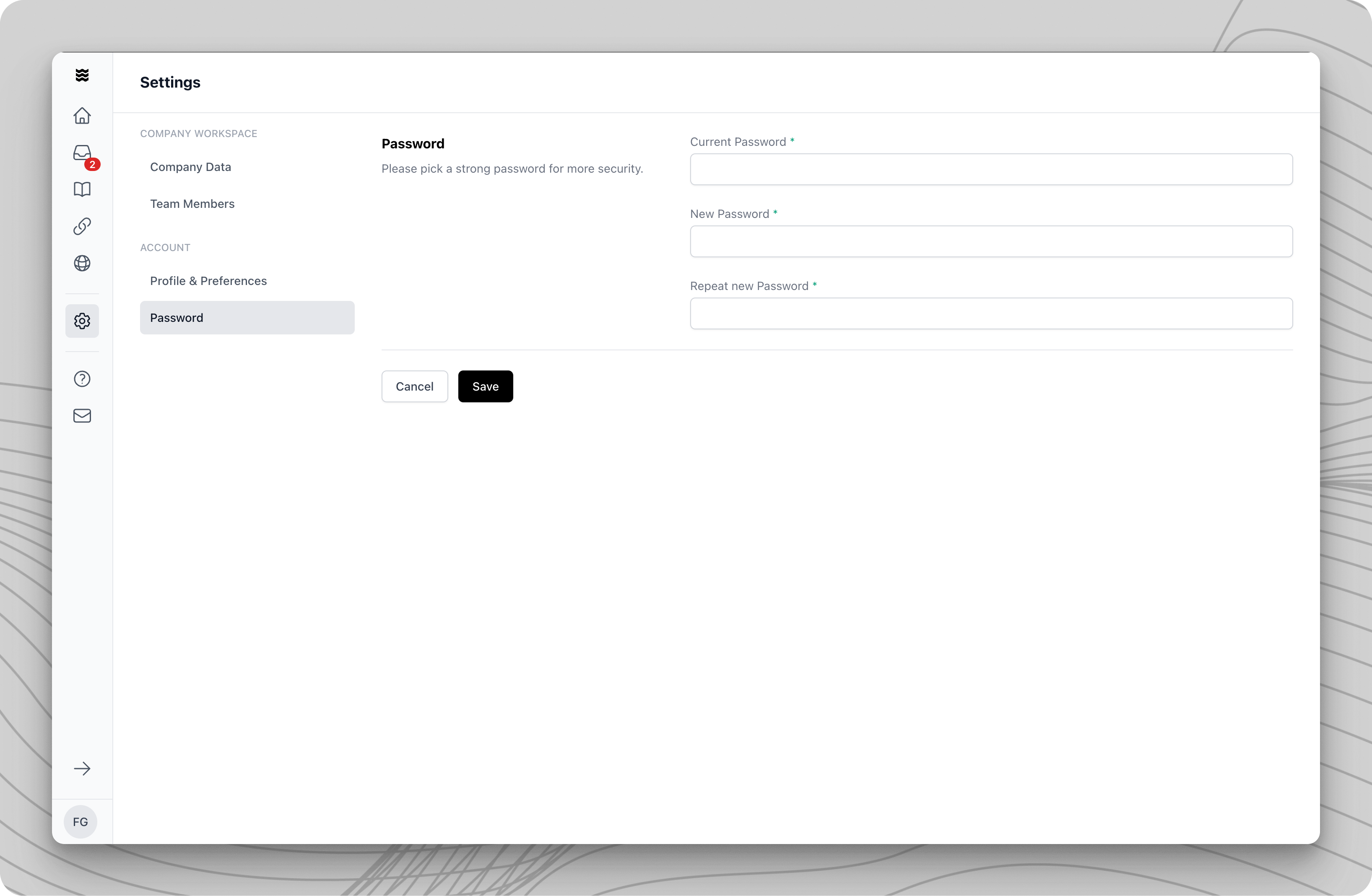 Your new password must meet security requirements and should be different from your previous password.
Navigate to "Settings" in the left sidebar. You can find the settings section at the bottom under "Your Account."
In the "Account" section, select the "Password" menu option. The password change form will be displayed.
* Enter your current password in the "Current Password" field
* Enter your desired new password
* Repeat the new password for confirmation
Click "Save" to apply the password change. After a successful update, you can log in with your new password.
Store your new password securely and do not share it with others. If you lose your password, please contact Procuros Support.
* At least 8 characters in length
* A combination of uppercase and lowercase letters
* At least one number
* At least one special character
* No reuse of previous passwords
Your new password must meet security requirements and should be different from your previous password.
Navigate to "Settings" in the left sidebar. You can find the settings section at the bottom under "Your Account."
In the "Account" section, select the "Password" menu option. The password change form will be displayed.
* Enter your current password in the "Current Password" field
* Enter your desired new password
* Repeat the new password for confirmation
Click "Save" to apply the password change. After a successful update, you can log in with your new password.
Store your new password securely and do not share it with others. If you lose your password, please contact Procuros Support.
* At least 8 characters in length
* A combination of uppercase and lowercase letters
* At least one number
* At least one special character
* No reuse of previous passwords