> ## Documentation Index
> Fetch the complete documentation index at: https://docs.procuros.io/llms.txt
> Use this file to discover all available pages before exploring further.
# Invite Team Members
> Learn how to add and manage team members in Procuros.
 ## Team Members Overview
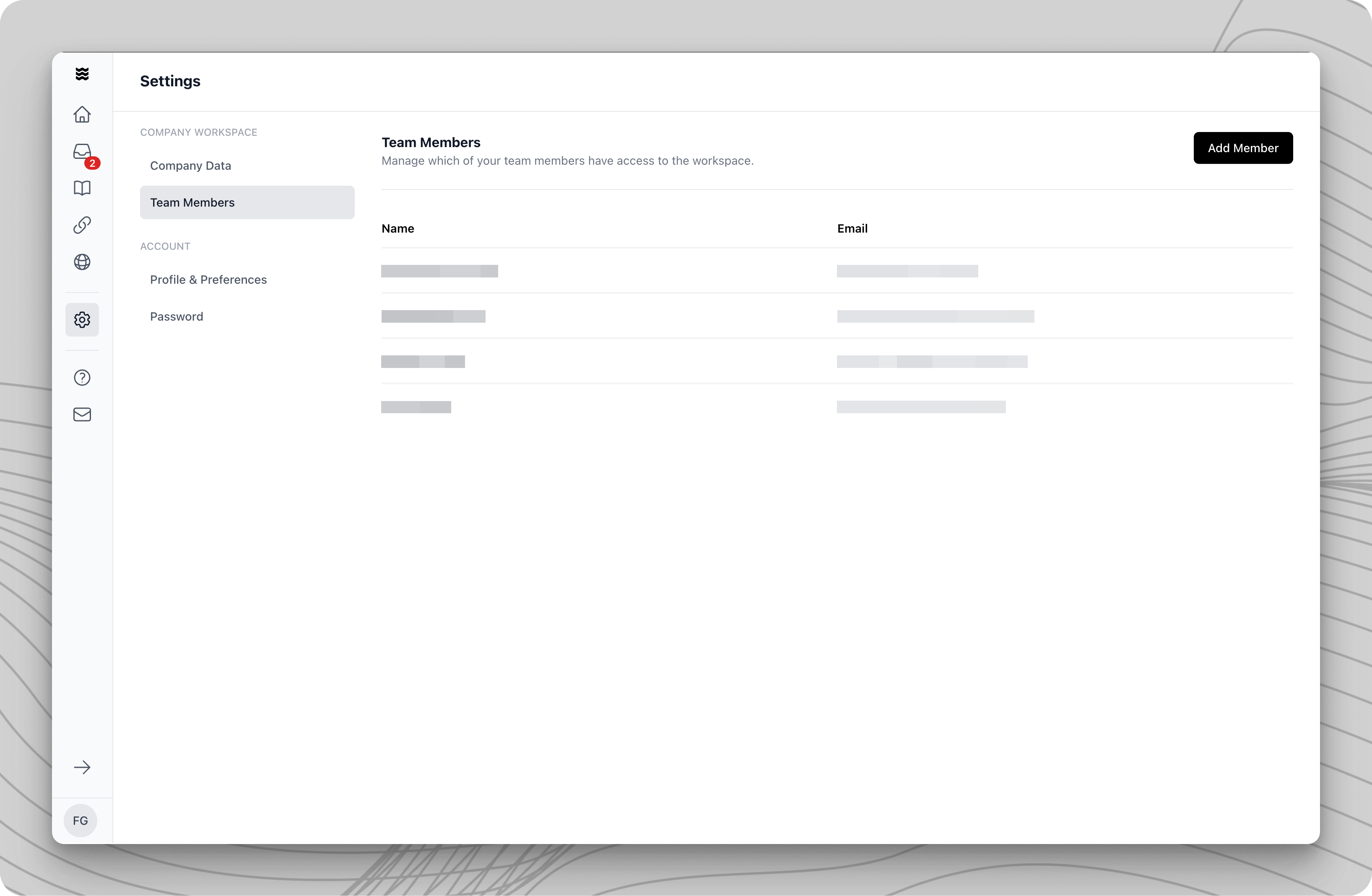
Click on "Settings" in the left navigation bar and then select the "Team Members" section. There, you will find a tabular overview of all current team members with the following information:
* Team member's name
* Assigned email address
## Invite a New Team Member
Click the "Add Member" button in the upper right corner of the team members overview.
In the dialog that appears, enter the email address and name of the new team member. Ensure the email address is spelled correctly.
Confirm your entries. The system will automatically send an invitation email to the specified address.
The invited team member will receive a personalized invitation link that is valid for 3 months. After this period, a new invitation must be sent.
## Team Members Overview
Click on "Settings" in the left navigation bar and then select the "Team Members" section. There, you will find a tabular overview of all current team members with the following information:
* Team member's name
* Assigned email address
## Invite a New Team Member
Click the "Add Member" button in the upper right corner of the team members overview.
In the dialog that appears, enter the email address and name of the new team member. Ensure the email address is spelled correctly.
Confirm your entries. The system will automatically send an invitation email to the specified address.
The invited team member will receive a personalized invitation link that is valid for 3 months. After this period, a new invitation must be sent.