> ## Documentation Index
> Fetch the complete documentation index at: https://docs.procuros.io/llms.txt
> Use this file to discover all available pages before exploring further.
# Sending Credit Notes
> Step by step guide to sending credit notes from Xentral to Procuros
## Sending Credit Notes
Credit notes are used to correct invoices that have already been issued.
### Prerequisites for Credit Notes
The following prerequisites must be met for sending credit notes:
* A corresponding invoice must already exist
* The credit note must be marked as a "**Cancellation invoice**"
* Procuros only transmits credit notes of this type
Only credit notes marked as "Cancellation invoice" are accepted by trading partners. This checkbox must be set when processing the credit note.
### Required Fields
The following fields must be correctly filled out:
* Customer order number (on order & delivery note)
* Planned delivery date (on order & delivery note)
* GLNs (Global Location Numbers)
* Procuros free field on the customer
* GLN of the delivery address on the customer
### Process for Sending Credit Notes
Create a test cancellation invoice from a relevant existing invoice and mark it as a "Cancellation invoice".
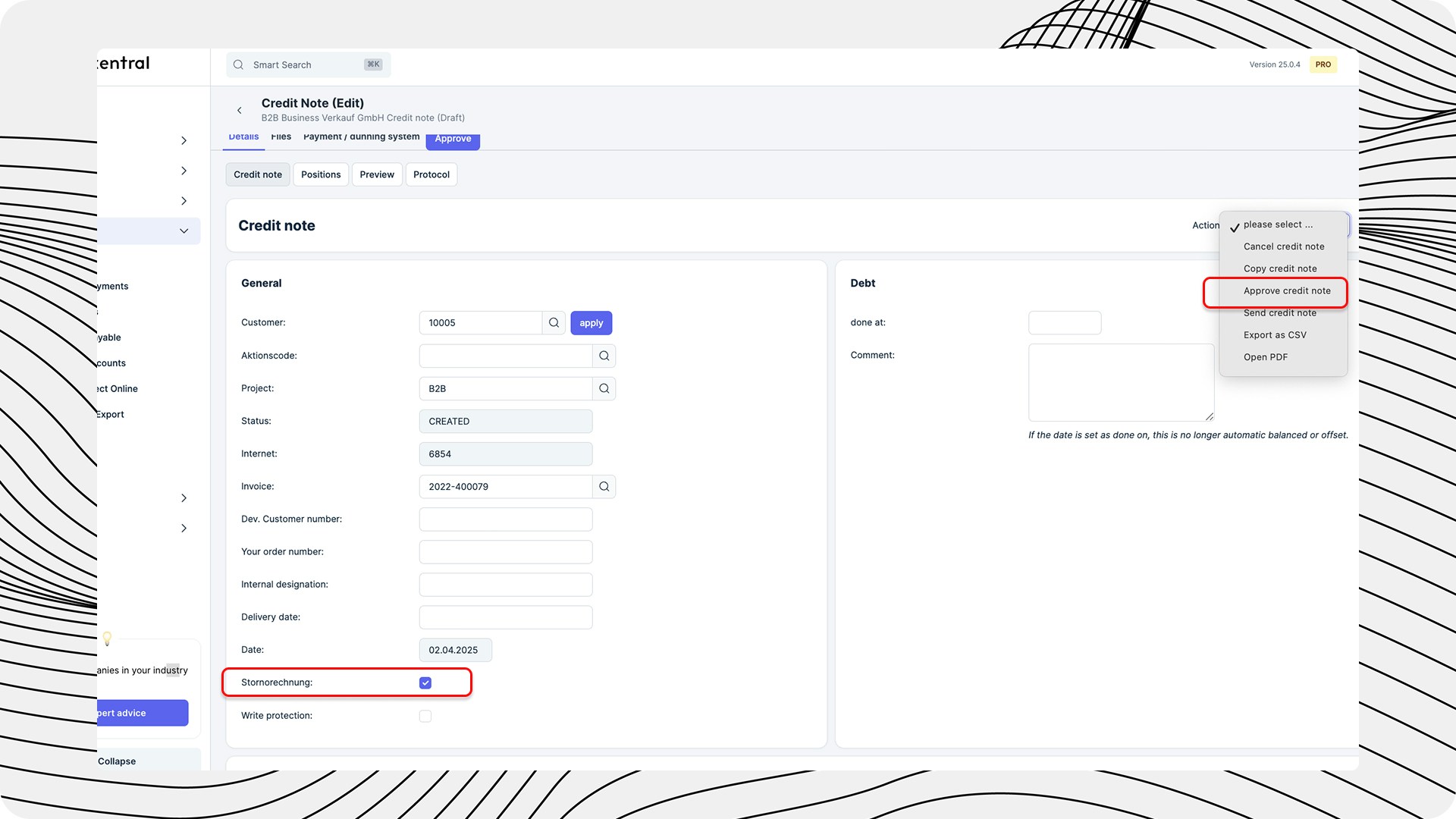 The document must be in the workflow status "approved".
If all prerequisites are met, the cancellation invoice will be automatically exported by Procuros.
Share the document number with Procuros and provide a PDF example. After positive feedback, credit notes can be sent regularly.
The document must be in the workflow status "approved".
If all prerequisites are met, the cancellation invoice will be automatically exported by Procuros.
Share the document number with Procuros and provide a PDF example. After positive feedback, credit notes can be sent regularly.