> ## Documentation Index
> Fetch the complete documentation index at: https://docs.procuros.io/llms.txt
> Use this file to discover all available pages before exploring further.
# Receiving Inventory Reports
> Step by step guide to receiving inventory reports in Xentral from Procuros.
## Receiving Inventory Reports
Inventory reports are sent by a fulfilment provider to Xentral to update stock levels and manage inventory.
### Prepare your instance for receiving inventory reports
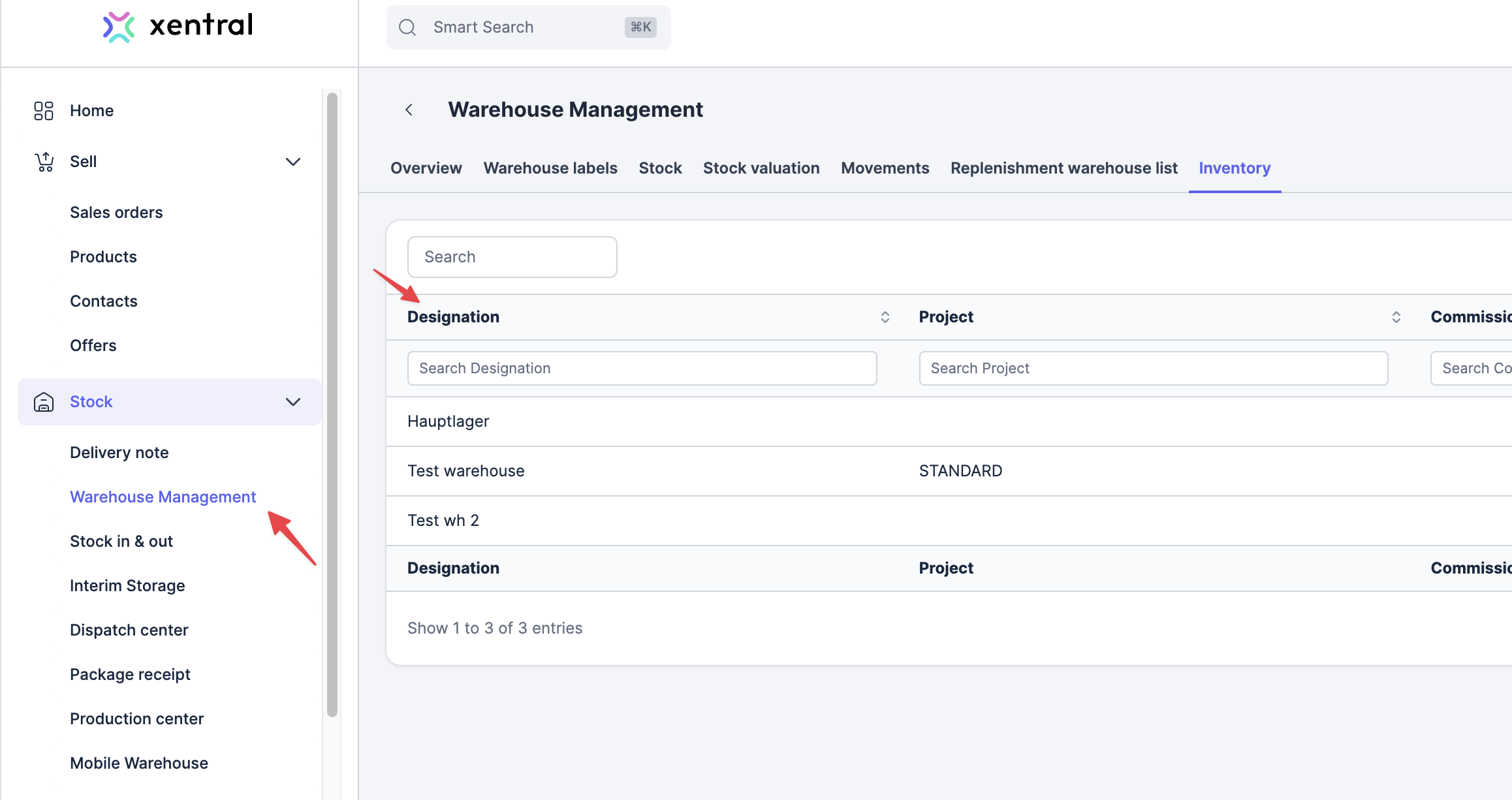
A warehouse needs to be set up in Xentral for the fulfilment provider you're trying to connect with. The warehouse designation must be provided to Procuros.
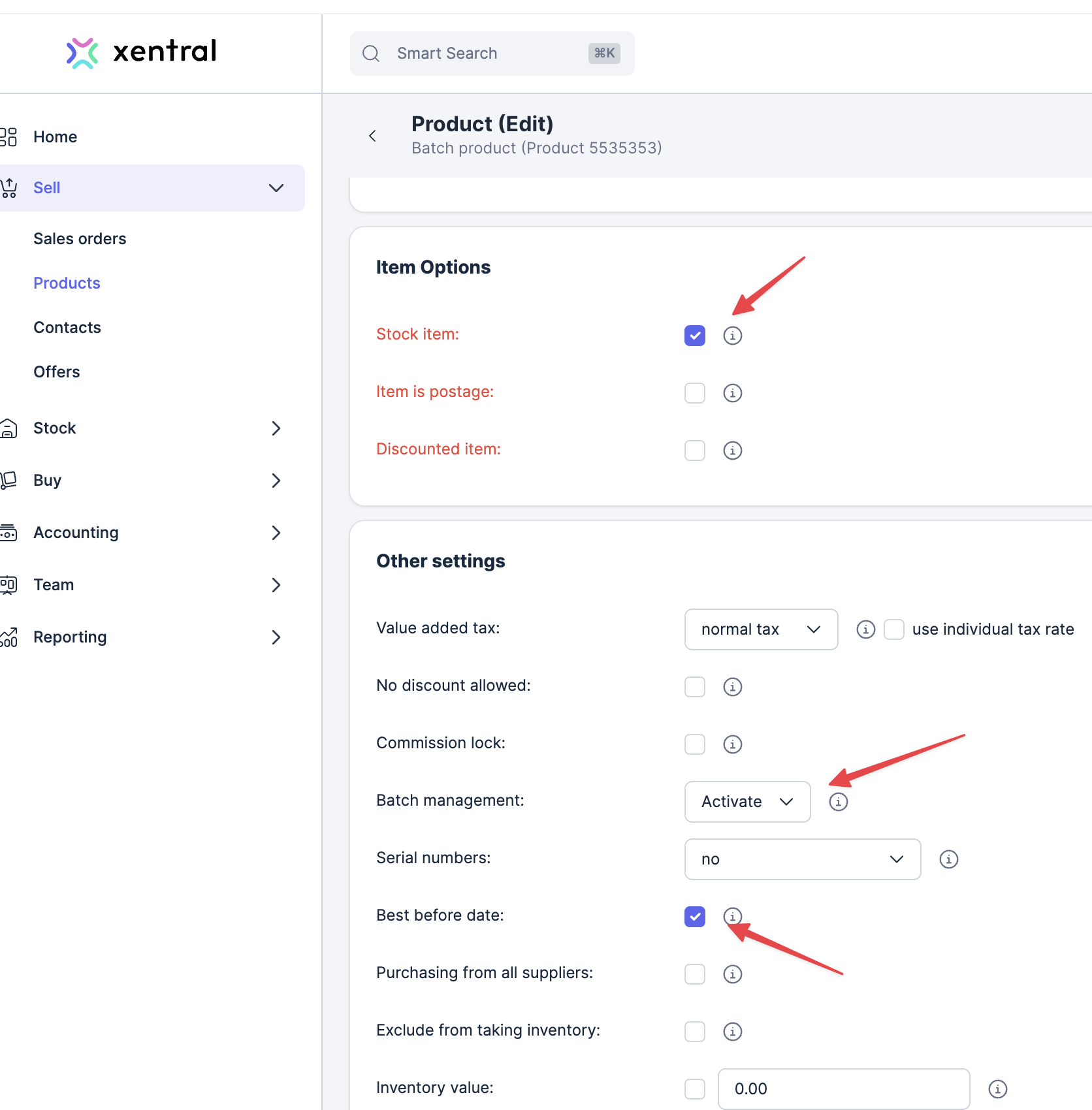
 All the products that are to be received in the inventory report must be properly set up in Xentral, including any wanted batch related option.
 Go to Settings > System > Process Starter and make sure that the process named "Übertragenmodul (Fulfillment, Übertragen, EDI, XML)" is activated and set to be running every 10 minutes.
### Create a new transfer for the inventory report
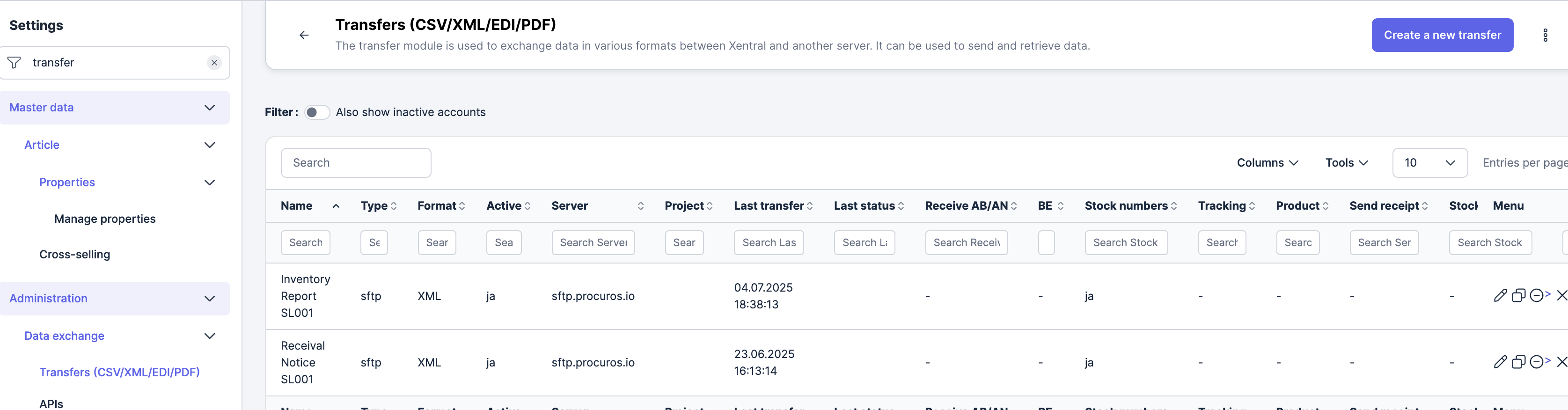
Go to Settings -> Administration -> Data Exchange -> Transfers and click "Create New Transfer"
Go to Settings > System > Process Starter and make sure that the process named "Übertragenmodul (Fulfillment, Übertragen, EDI, XML)" is activated and set to be running every 10 minutes.
### Create a new transfer for the inventory report
Go to Settings -> Administration -> Data Exchange -> Transfers and click "Create New Transfer"
 * API: Select the relevant api account. If you don't have any, go to the APIs menu, in Settings -> Administration -> Data Exchange, and create one.
* Transfer format: XML
* Type: SFTP
* Server: to be provided by Procuros
* Port: to be provided by Procuros
* Username: to be provided by Procuros
* Password: to be provided by Procuros
* Antwort-Speicherort (Eingang): to be provided by Procuros
* Delete files after download: Checked/Active
Anything not mentioned here can be left as default.
* Stock numbers received: Checked/Active
* Storage behaviour: "Override"
* Display error message for unknown items: Checked/Active
Anything not mentioned here can be left as default.
Make sure you save the transfer settings after adjusting them. This will ensure that the transfer is correctly configured for receiving inventory reports.
* API: Select the relevant api account. If you don't have any, go to the APIs menu, in Settings -> Administration -> Data Exchange, and create one.
* Transfer format: XML
* Type: SFTP
* Server: to be provided by Procuros
* Port: to be provided by Procuros
* Username: to be provided by Procuros
* Password: to be provided by Procuros
* Antwort-Speicherort (Eingang): to be provided by Procuros
* Delete files after download: Checked/Active
Anything not mentioned here can be left as default.
* Stock numbers received: Checked/Active
* Storage behaviour: "Override"
* Display error message for unknown items: Checked/Active
Anything not mentioned here can be left as default.
Make sure you save the transfer settings after adjusting them. This will ensure that the transfer is correctly configured for receiving inventory reports.