> ## Documentation Index
> Fetch the complete documentation index at: https://docs.procuros.io/llms.txt
> Use this file to discover all available pages before exploring further.
# How to connect your Xentral instance to Procuros
> Step by step guide to setup your technical connection between your Xentral and Procuros
The setup of the Xentral Connector is done via a Personal Access Token in Xentral.
Click on your username in the bottom left and select **Account Settings**.
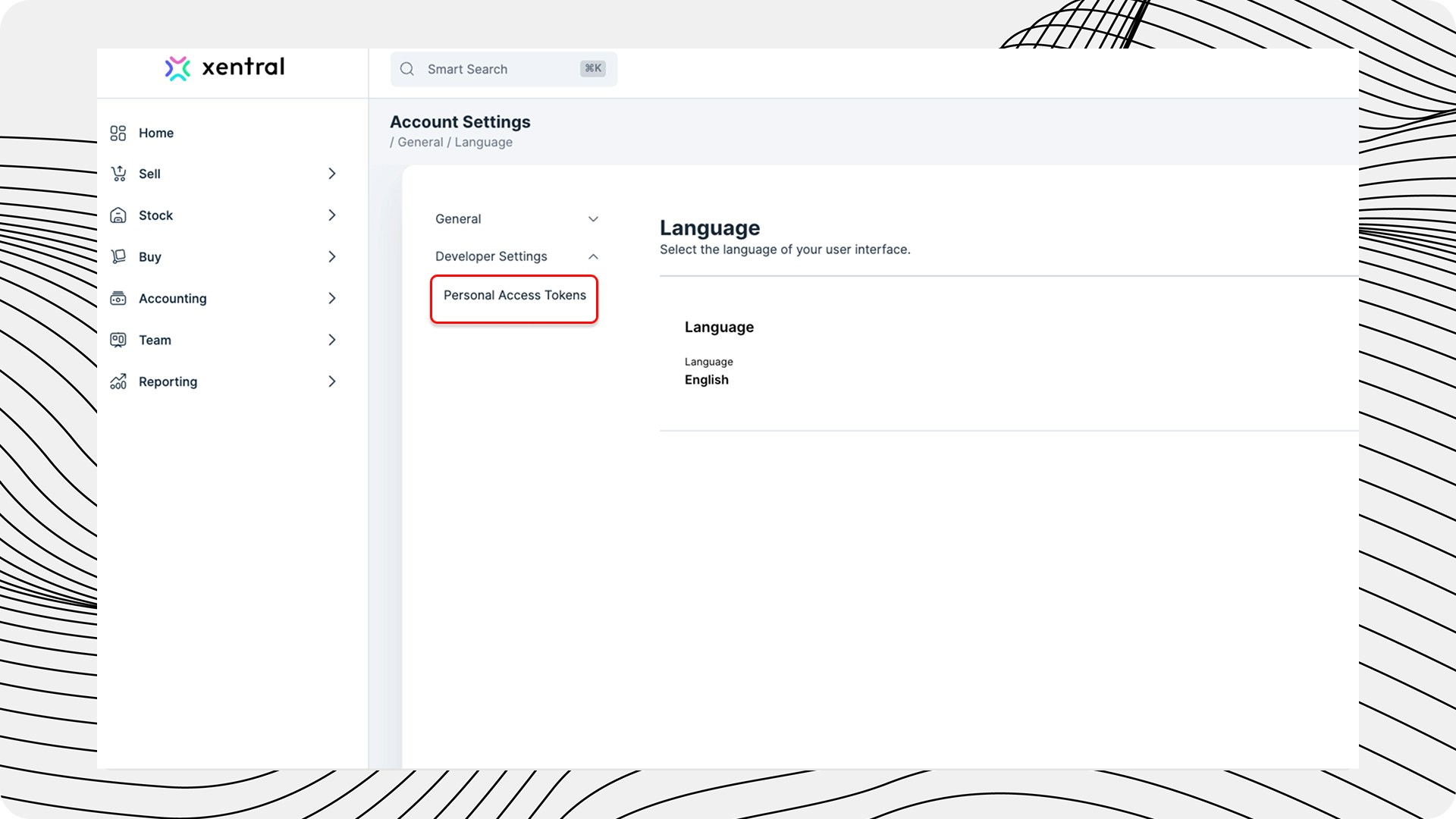
.jpg?fit=max&auto=format&n=WEWxE_97bveYqyyM&q=85&s=be99e56d5f6a62d63574225254c3792a) Go to **Developer Settings > Personal Access Token**. Here you will see a list of all active tokens.
Go to **Developer Settings > Personal Access Token**. Here you will see a list of all active tokens.
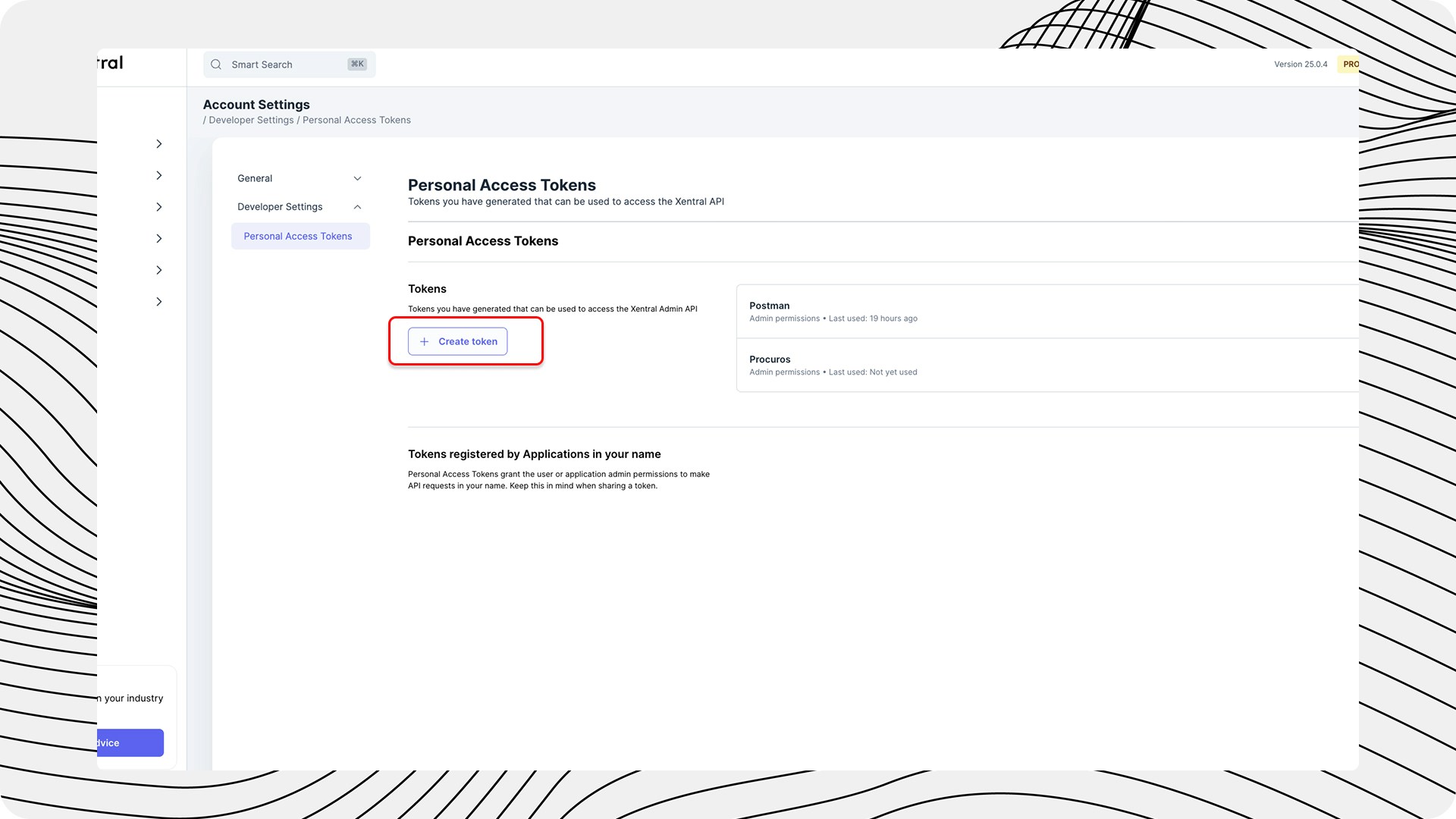
 Click on **+ Create Token**. If no tokens are active, you will find the button in the center of the screen. Otherwise, it appears at the top right above your token list.
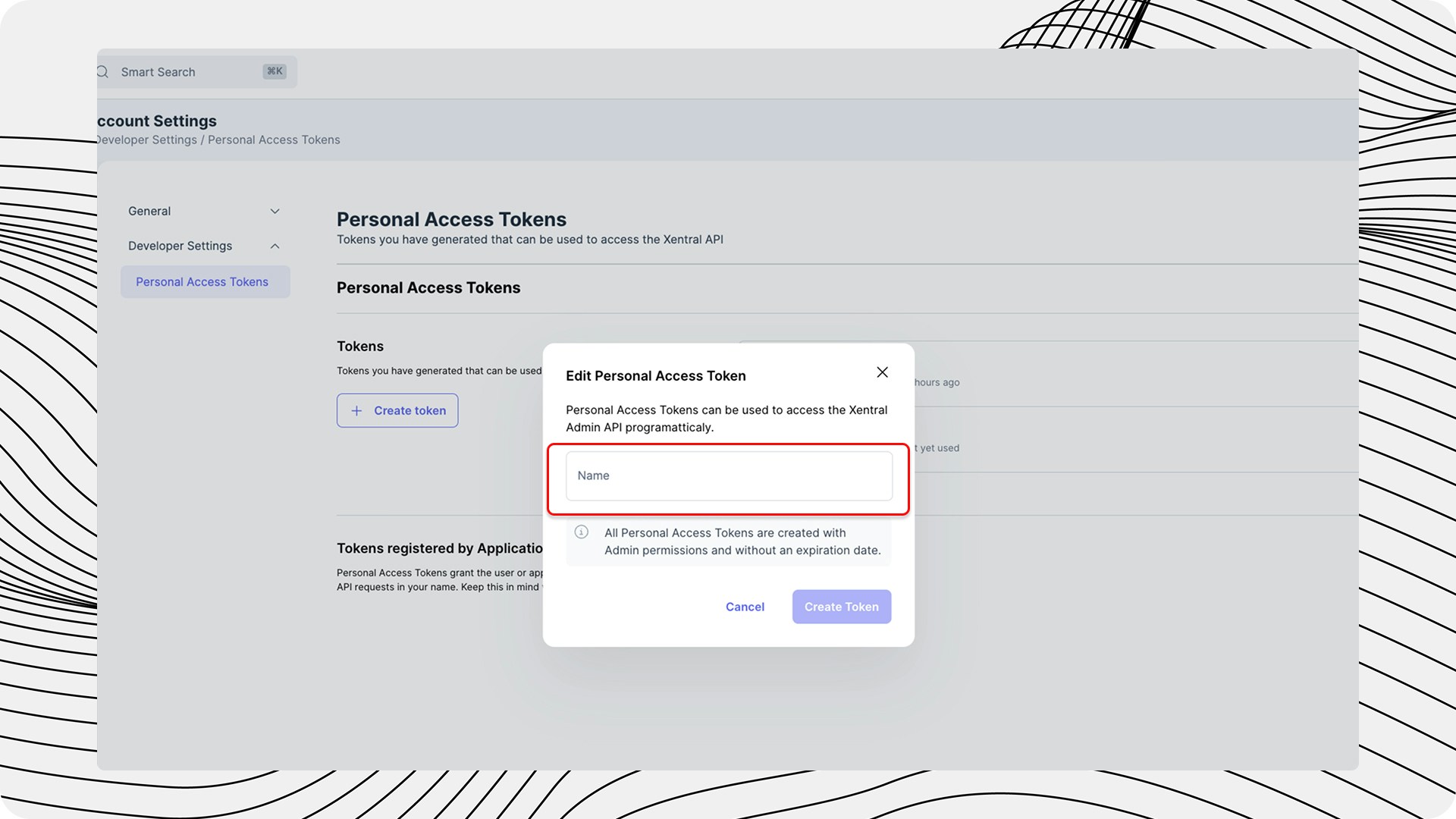
 Enter a unique name for your token (maximum 50 characters).
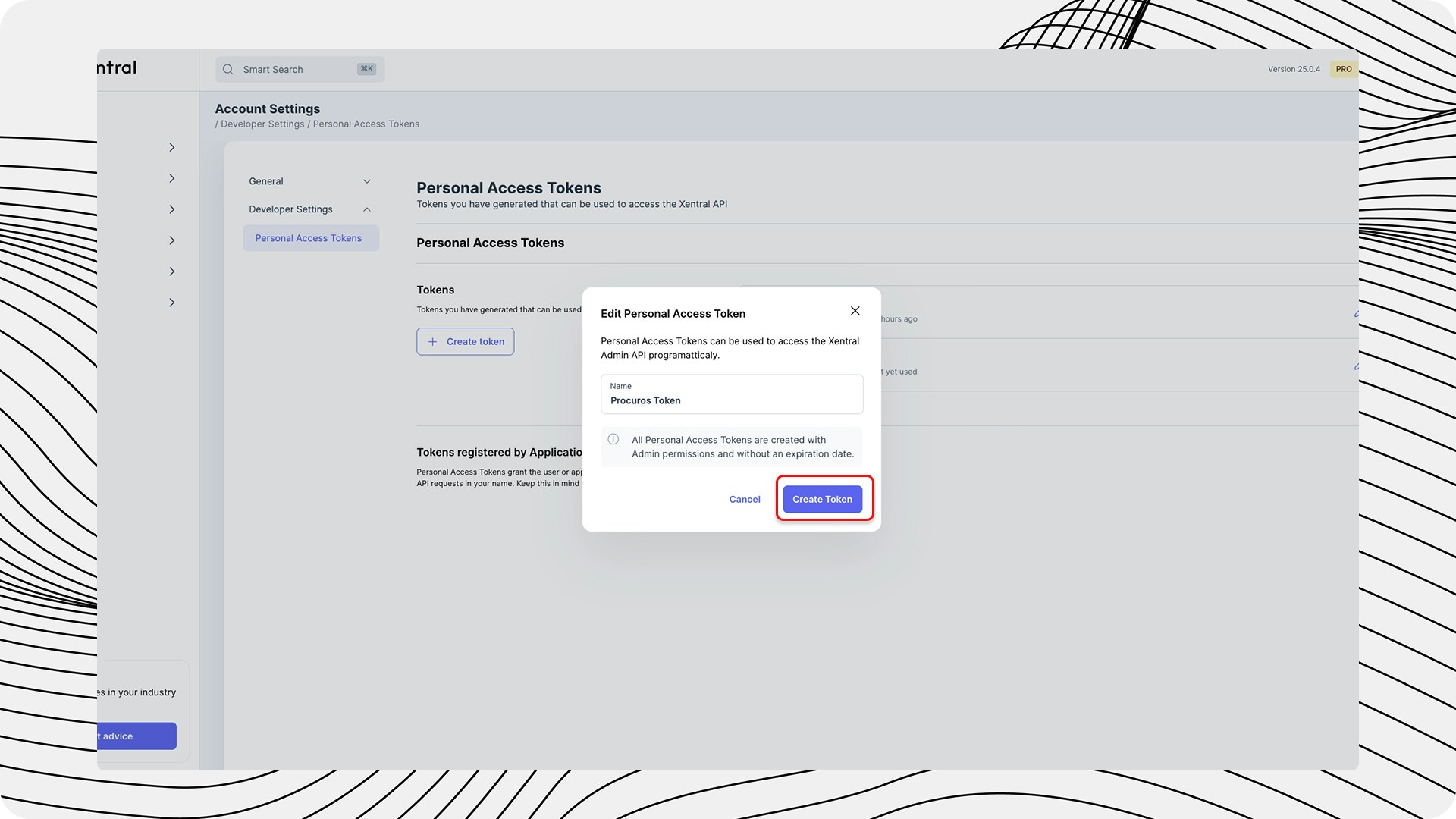
 Click on **Create Token**. The new token will appear on the screen.
 Click on the copy icon to copy the token to the clipboard.
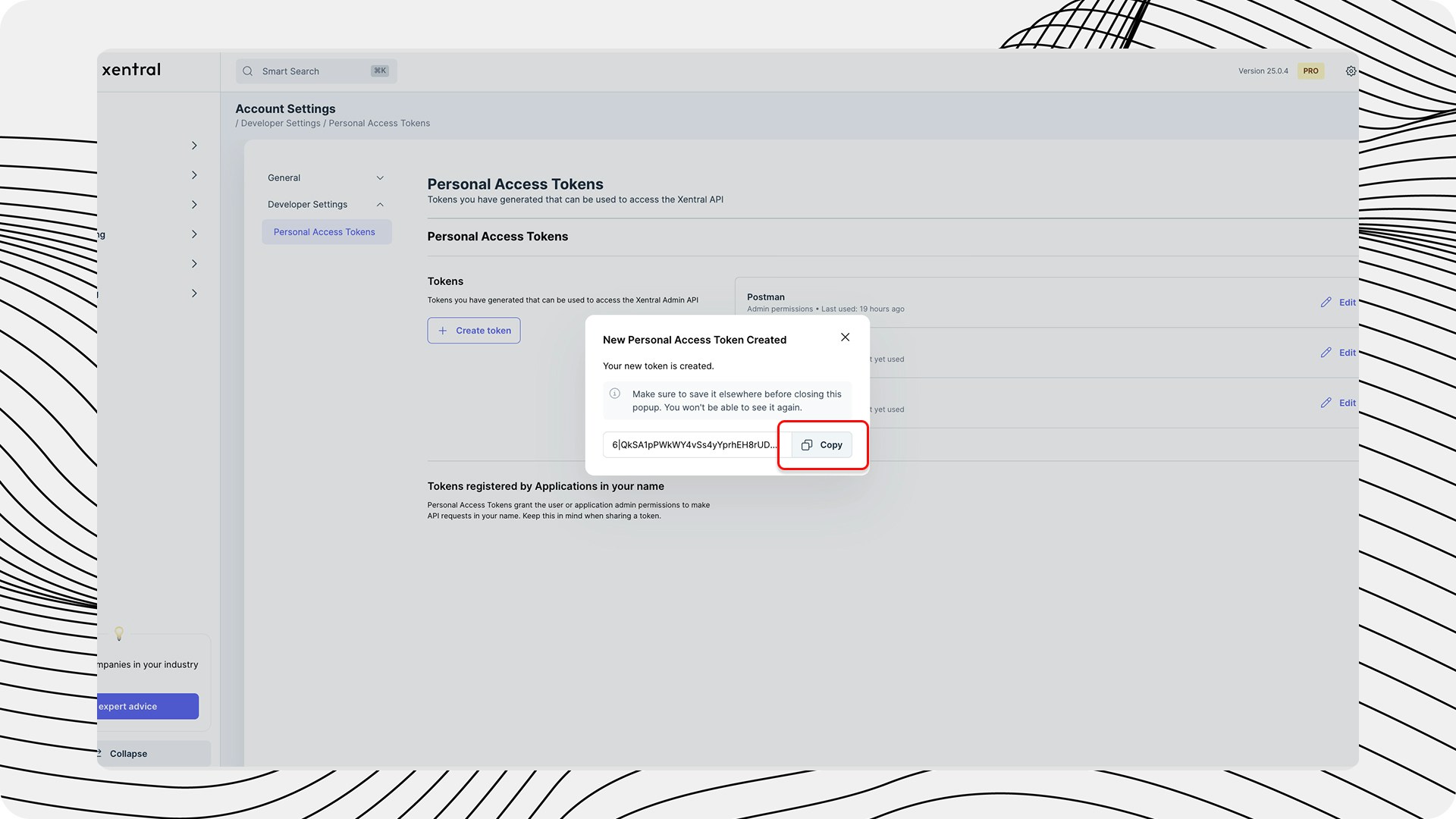 Keep the token safe, as it will not be displayed again after leaving the page.
## Submit Access Information to Procuros
The following information is required for the setup:
1. **Xentral API URL**: This consists of your browser URL + "/api"
2. **Xentral PAT**: Encrypt this via [https://eu.onetimesecret.com/](https://eu.onetimesecret.com/) and send it by email to [help@procuros.io](mailto:help@procuros.io)
3. **Xentral Project ID**: If relevant for your integration
Never transmit the Personal Access Token unencrypted via email.
## Test Connection
After configuration by the Procuros team, a connection test is performed:
1. Procuros sets up the connector with your access data
2. A test document is created to verify correct transmission
3. After successful verification, you will be informed about the operational connection
## Troubleshooting
If problems occur during setup:
1. **API Access Rights**: Ensure that the created token has sufficient rights
2. **Firewall Settings**: Check if your firewall settings allow connections from Procuros
3. **Xentral Version**: Confirm that your Xentral version is compatible with the connector
If problems occur, contact the Procuros support team at [help@procuros.io](mailto:help@procuros.io) with a detailed description of the problem.
Keep the token safe, as it will not be displayed again after leaving the page.
## Submit Access Information to Procuros
The following information is required for the setup:
1. **Xentral API URL**: This consists of your browser URL + "/api"
2. **Xentral PAT**: Encrypt this via [https://eu.onetimesecret.com/](https://eu.onetimesecret.com/) and send it by email to [help@procuros.io](mailto:help@procuros.io)
3. **Xentral Project ID**: If relevant for your integration
Never transmit the Personal Access Token unencrypted via email.
## Test Connection
After configuration by the Procuros team, a connection test is performed:
1. Procuros sets up the connector with your access data
2. A test document is created to verify correct transmission
3. After successful verification, you will be informed about the operational connection
## Troubleshooting
If problems occur during setup:
1. **API Access Rights**: Ensure that the created token has sufficient rights
2. **Firewall Settings**: Check if your firewall settings allow connections from Procuros
3. **Xentral Version**: Confirm that your Xentral version is compatible with the connector
If problems occur, contact the Procuros support team at [help@procuros.io](mailto:help@procuros.io) with a detailed description of the problem.