> ## Documentation Index
> Fetch the complete documentation index at: https://docs.procuros.io/llms.txt
> Use this file to discover all available pages before exploring further.
# How to setup Customer Master Data in Weclapp
> Step by step guide to configure your customer master data
### Creating Trading Partner GLNs
Open a customer's customer card and add or change addresses by clicking on the "plus" sign.
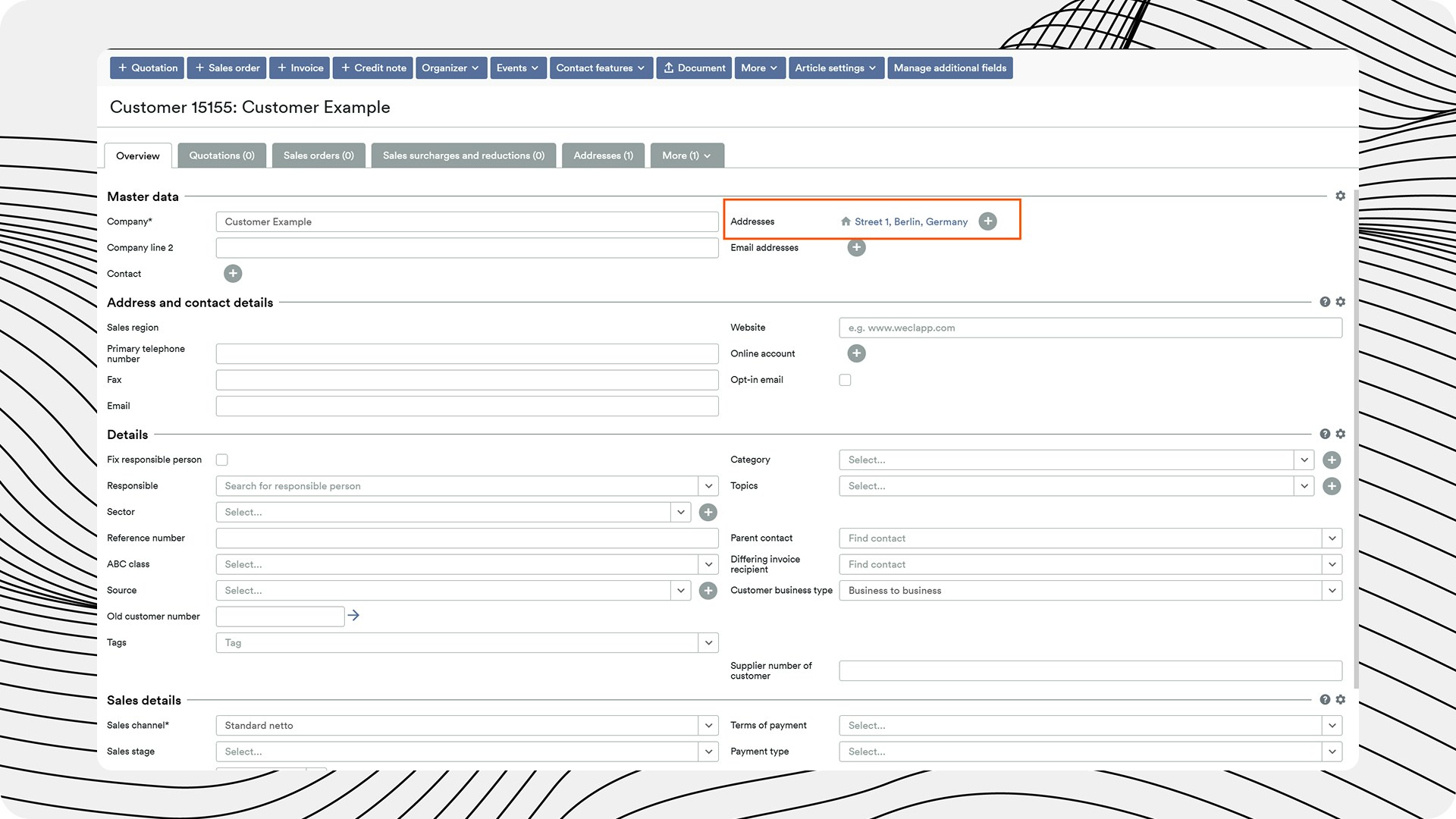 Check all boxes relevant to this address. Pay attention to different billing or delivery addresses. These must be created separately - details can be found in the official Weclapp documentation.
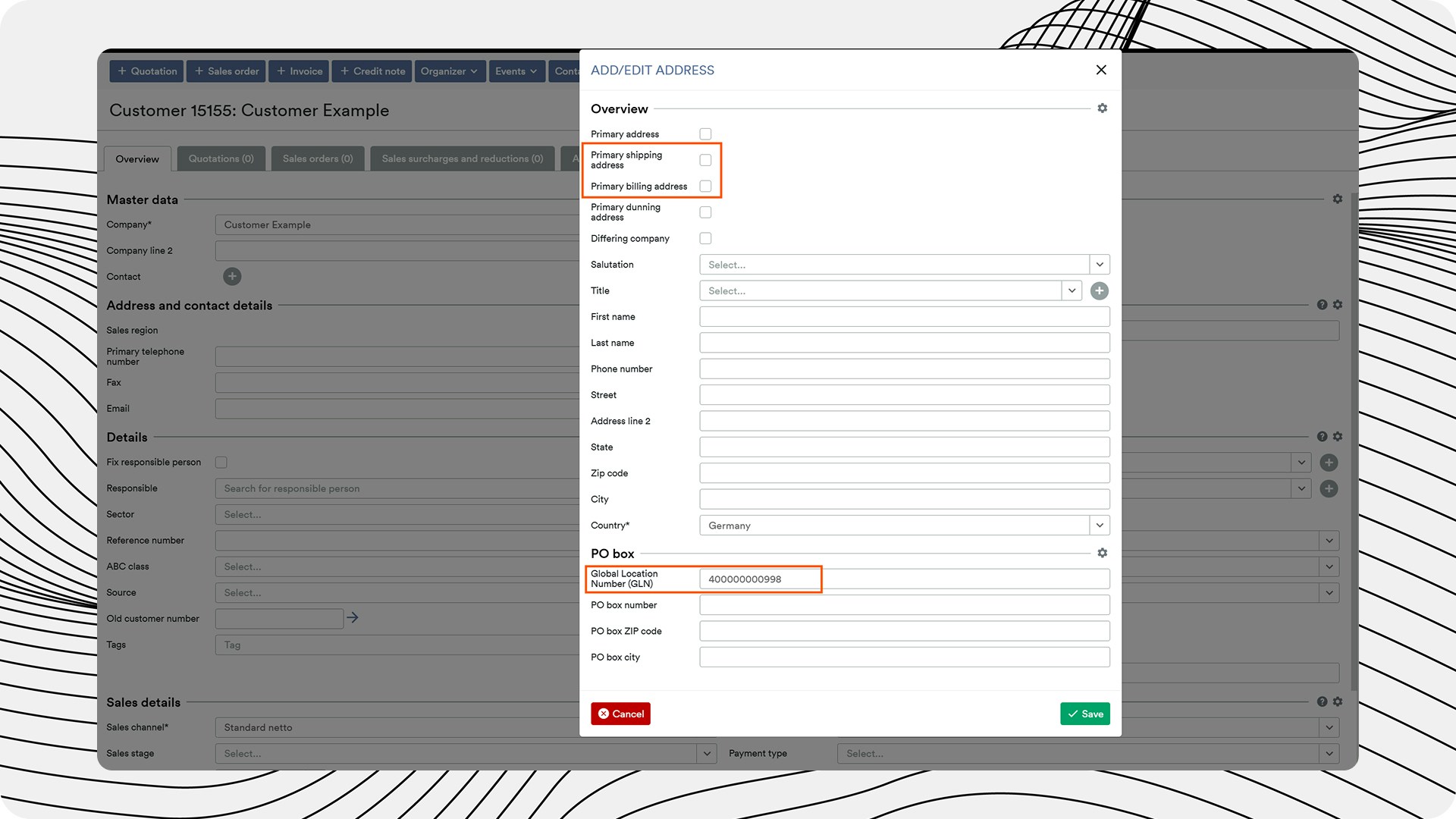 Paste the GLN into the appropriate field located at the bottom.
Please be careful not to include spaces or other special characters - the GLN must adhere to the GS1 standards.
### Creating Trading Partner Sales Tax IDs
Set up the sales tax ID / VAT ID in your customer's master data.
To do this, open a corresponding customer and in the "Overview" tab scroll down to the "VAT ID number" field and enter the customer's VAT ID there.
Paste the GLN into the appropriate field located at the bottom.
Please be careful not to include spaces or other special characters - the GLN must adhere to the GS1 standards.
### Creating Trading Partner Sales Tax IDs
Set up the sales tax ID / VAT ID in your customer's master data.
To do this, open a corresponding customer and in the "Overview" tab scroll down to the "VAT ID number" field and enter the customer's VAT ID there.
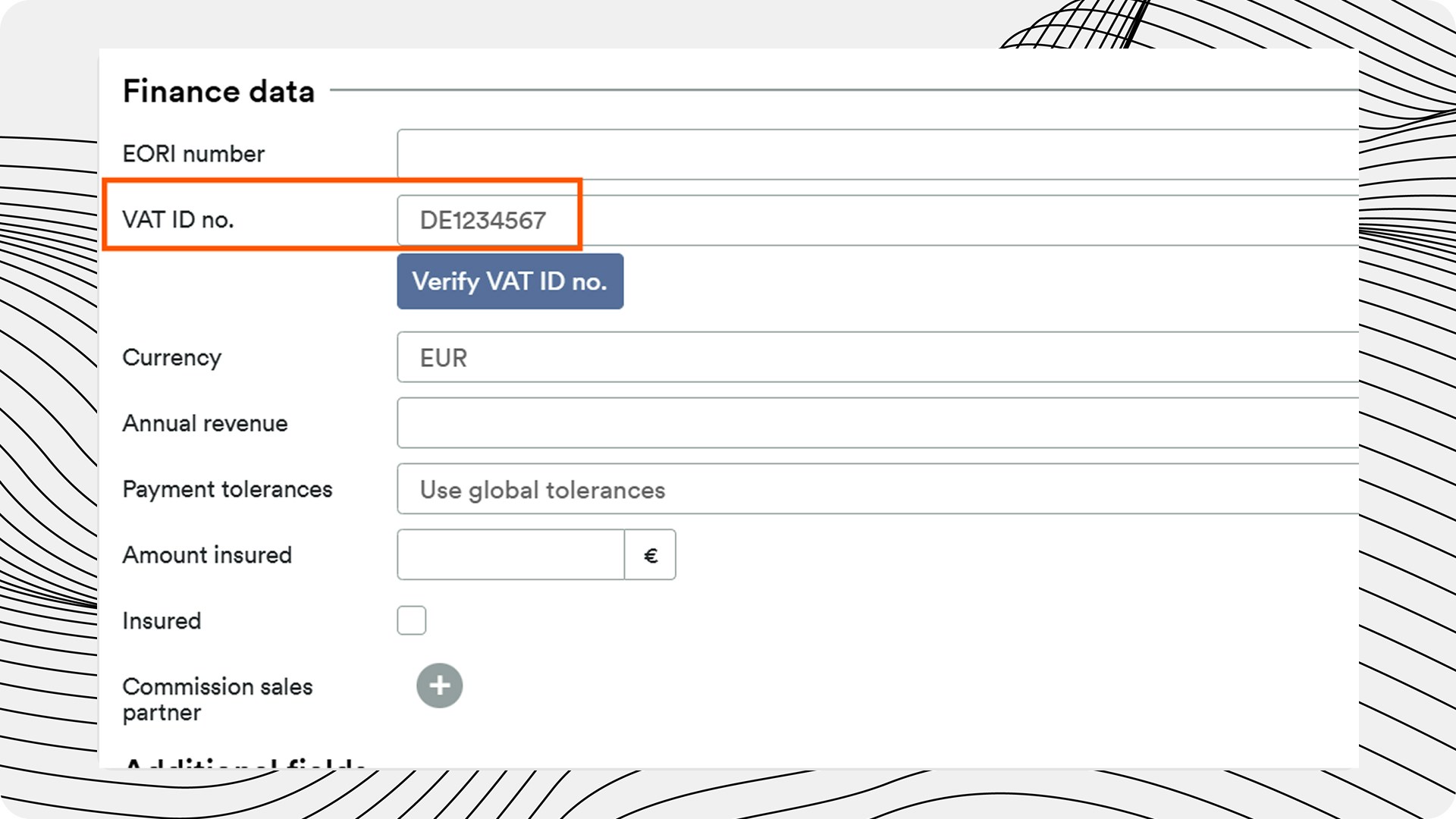 The correct setup of the VAT ID is particularly important for the correct tax treatment in cross-border trade.
## Master Data Checklist
Use this checklist to ensure that all necessary master data is correctly stored:
* GLN stored for each trading partner
* GLN stored for different billing and delivery addresses
* VAT ID stored for each trading partner
* Procuros free field filled out with "CUSTOMER" value for each relevant trading partner
The correct setup of the VAT ID is particularly important for the correct tax treatment in cross-border trade.
## Master Data Checklist
Use this checklist to ensure that all necessary master data is correctly stored:
* GLN stored for each trading partner
* GLN stored for different billing and delivery addresses
* VAT ID stored for each trading partner
* Procuros free field filled out with "CUSTOMER" value for each relevant trading partner