> ## Documentation Index
> Fetch the complete documentation index at: https://docs.procuros.io/llms.txt
> Use this file to discover all available pages before exploring further.
# How to set up Fulfillment
> Step by step guide to setting up fulfillment in Weclapp
## Setting up the fulfillment integration for 3PL documents
* The shipping instructions are sent to the fulfillment service provider (3PL) as soon as the corresponding delivery note has the status "created" in weclapp
* As soon as the fulfillment service provider (3PL) sends a shipping instruction feedback to weclapp, the status of the corresponding delivery note in weclapp is automatically changed to "sent"
### Setting Up Warehouse
A warehouse must be set up in weclapp for each fulfillment service provider. In this way, Procuros can distinguish between different fulfillment service providers and the associated warehouses.
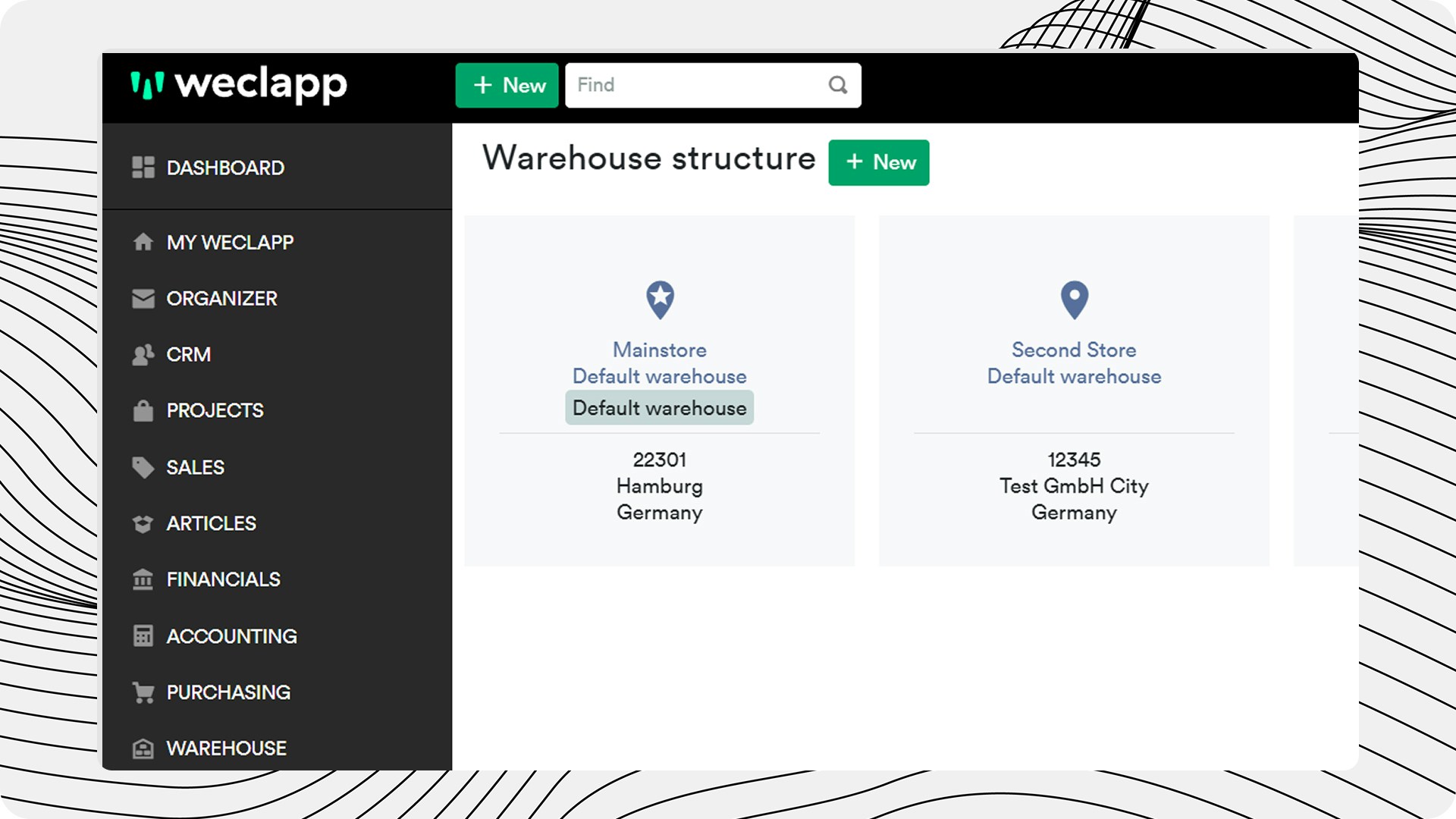 Go to Settings → Warehouse and create / edit a warehouse entity.
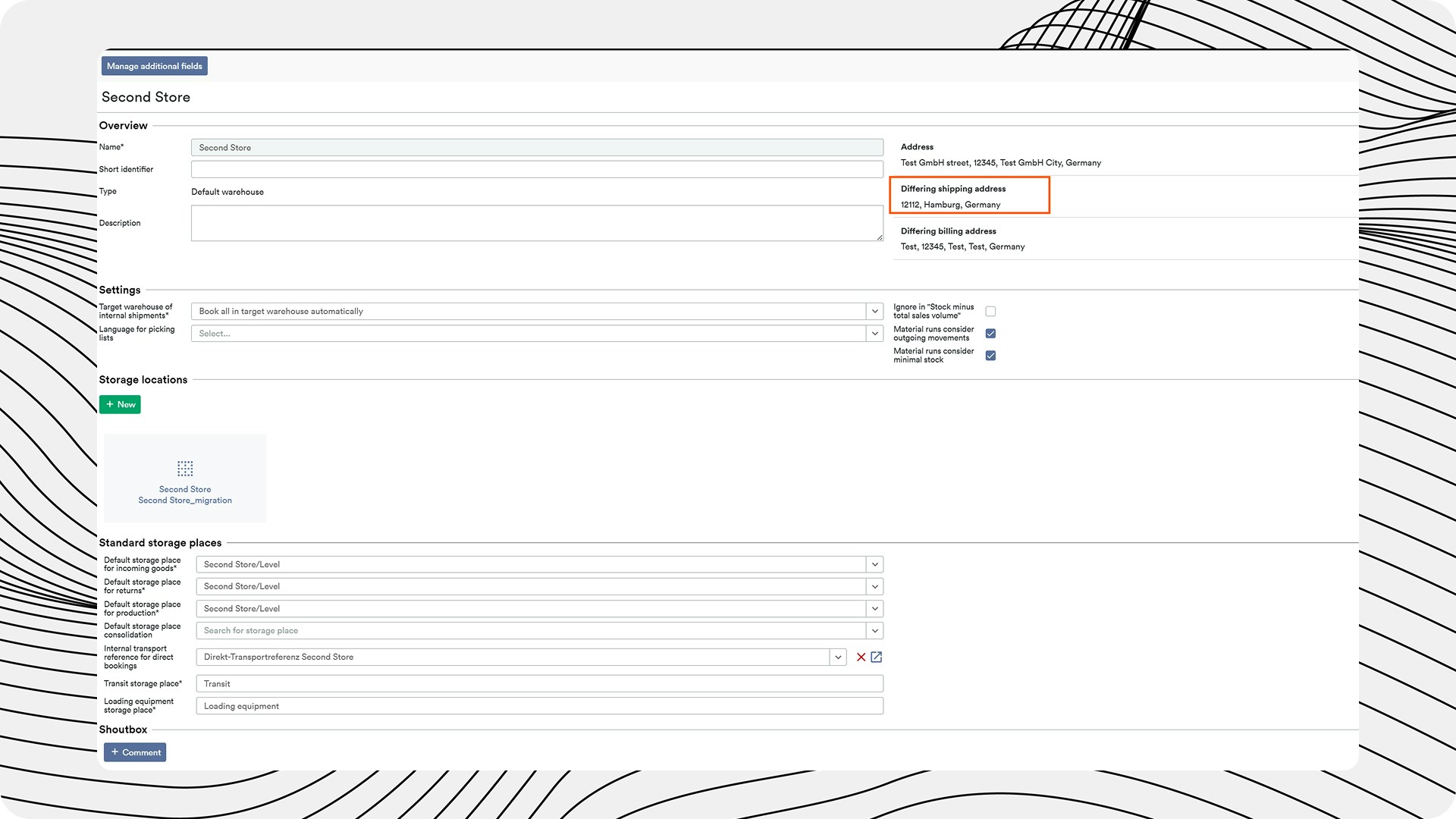 Add all the required details:
* Warehouse name
* The delivery address of the Warehouse
* GLN - without the GLN, Procuros will not be able to send the document to the correct Fulfiller
Add all the required details:
* Warehouse name
* The delivery address of the Warehouse
* GLN - without the GLN, Procuros will not be able to send the document to the correct Fulfiller
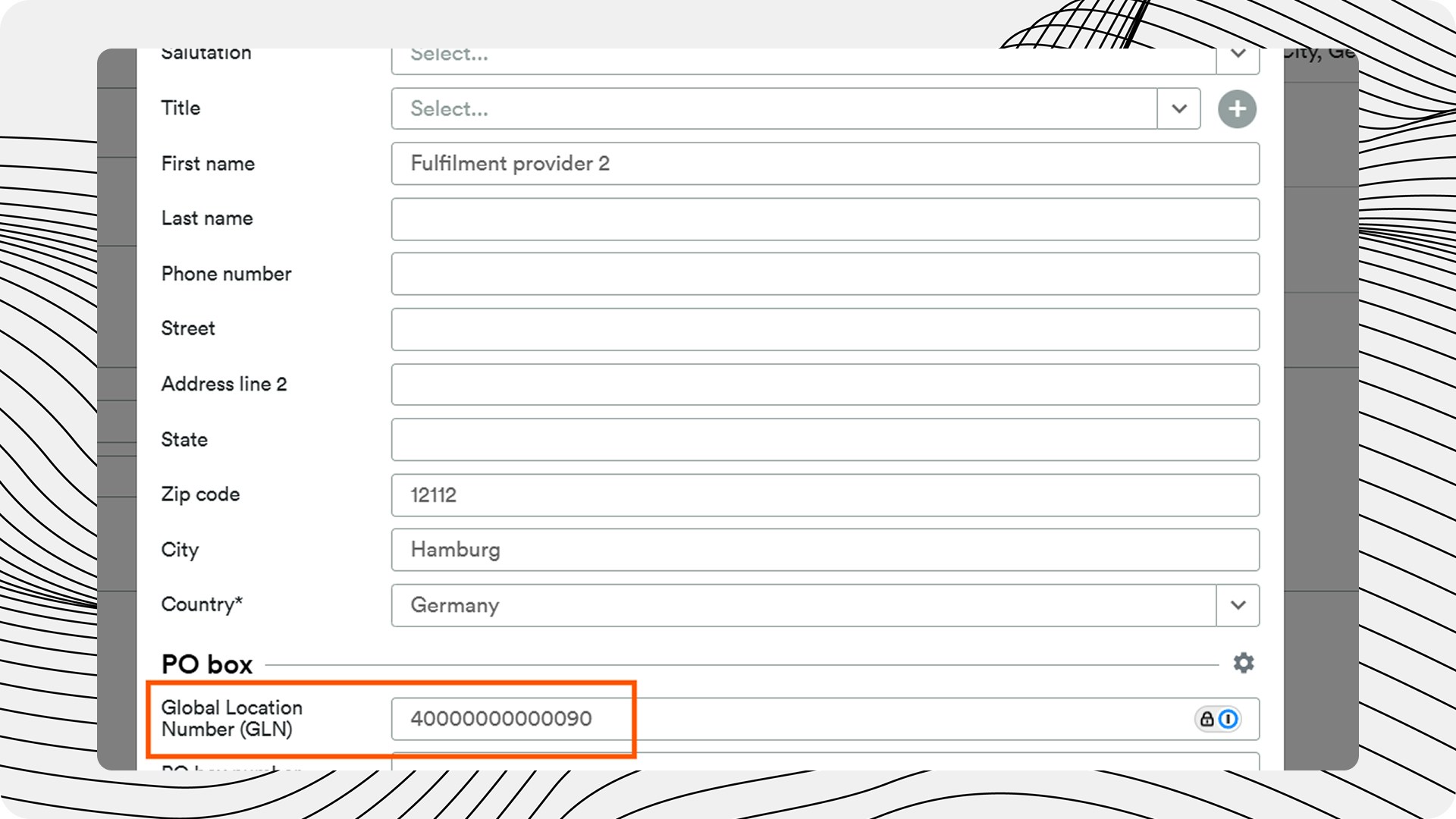 Please then send the relevant warehouse identifier ("ID") to Procuros. To do this, open the relevant warehouse and copy the ID that you can find in the URL. Procuros needs this information to identify the specific Warehouse.
Without the GLN, Procuros cannot send the document to the correct Fulfiller.
### Sending a Dispatch Instruction
Make sure the *shipment* is in weclapp status "*Delivery note created*".
The shipment you choose for testing must have a "date" AFTER `activeFromDate`.
Make sure the correct *Warehouse / Lager* is selected while creating the *shipment*.
Ensure the following mandatory data fields are filled on the shipment:
* *Customer order number*
* *Shipping date*
Please then send the relevant warehouse identifier ("ID") to Procuros. To do this, open the relevant warehouse and copy the ID that you can find in the URL. Procuros needs this information to identify the specific Warehouse.
Without the GLN, Procuros cannot send the document to the correct Fulfiller.
### Sending a Dispatch Instruction
Make sure the *shipment* is in weclapp status "*Delivery note created*".
The shipment you choose for testing must have a "date" AFTER `activeFromDate`.
Make sure the correct *Warehouse / Lager* is selected while creating the *shipment*.
Ensure the following mandatory data fields are filled on the shipment:
* *Customer order number*
* *Shipping date*